How to build an automated WordPress backup habit with free tools


Losing a website isn’t just frustrating. It can undo months or years of work in a single moment. Hardware failures, bad updates, or hacked plugins can all take a WordPress site offline, and the only way to fully recover is with a recent backup you can trust. The good news is you don’t need expensive paid plugins to get there, especially if you’re hosting WordPress with EasyWP.
With EasyWP and a few free tools, you can establish a backup routine that easily protects your using one-click backups plus automated reminders and a simple checklist.. Along the way, you’ll also learn where to store those backups and how to restore them safely when something goes wrong.
Why plugin‑free backups are worth the effort
Every plugin you add to WordPress brings code, complexity, and long‑term maintenance. Backup plugins are powerful, but they can also slow down your site or conflict with other tools, especially if they’re not updated regularly. By relying on hosting‑level backups and free, lightweight options instead of paid add‑ons, you reduce the risk of performance hits and compatibility issues.
For EasyWP customers, most of the heavy lifting already happens at the hosting level. Your dashboard includes one‑click backup and restore, plus options to download backups to your own storage if you want an extra layer of safety. That means fewer plugins to configure and less for you to remember when you’re focused on content or clients.
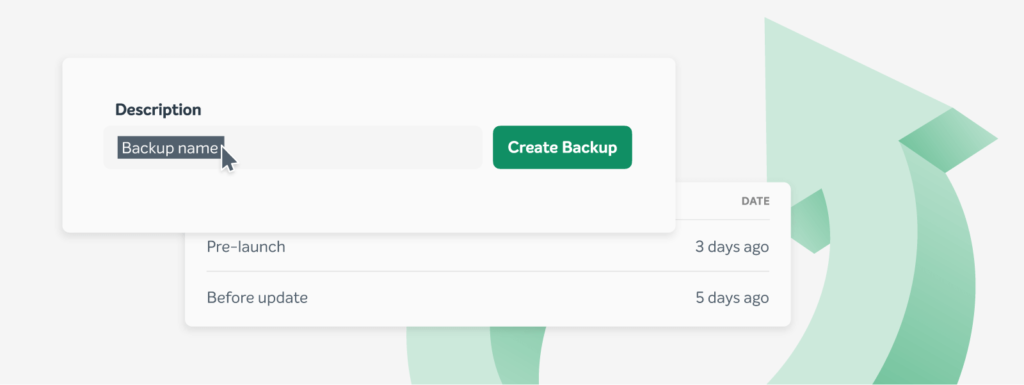
While EasyWP doesn’t automatically generate scheduled backups for you, it does make it fast enough to back up on a schedule you control (and restore in one click if you ever need to roll back).
- EasyWP handles – one-click backup creation, one-click restore, backup download options, a dashboard place to manage backups.
- You handle – when backups are created, where off-site copies are stored, and testing
Here are 5 quick steps to help you establish a routine that’s easy to maintain, and provides useful, strategic backup files that are ready when and if you need them.
Step 1: Know what a complete backup includes
Before you choose a backup method, it helps to understand what you’re actually protecting. A full WordPress backup usually includes two parts:
- Files: WordPress core, themes, plugins, uploads, and custom code.
- Database: Posts, pages, comments, settings, and most plugin data.
If you only save your files, you’ll miss your content and configuration. If you only export the database, you’ll lose your theme customizations and media uploads. Any backup plan you create should capture both.
On EasyWP, the built-in backup system is designed to include your full WordPress application, covering both the database and files in one operation. That gives you a reliable baseline to build on, even if you later add your own off‑site copies.
Step 2: Use EasyWP’s one‑click backups as your base layer
If your site runs on EasyWP, your simplest (and safest) backup tool is already waiting in your hosting dashboard. You don’t have to install or pay for anything extra.
To create a backup with EasyWP:
- Log in to your EasyWP dashboard and select the site you want to protect.
- Open the Backups tab in the left‑hand menu.
- Add a short description — for example, “Before theme update” or “Pre‑campaign launch” — so you’ll recognize it later.
- Select the Create Backup button and wait for the confirmation message or email.
These backups live on the same EasyWP infrastructure as your site and can be restored with a single click if something breaks. That alone can save you hours of troubleshooting after a bad plugin update or a misconfigured setting.
Step 3: Build a repeatable backup schedule (with automated reminders)
While one‑click backups are handy, they only help if you remember to use them. That’s where a simple schedule comes in. Even without an automated paid plugin, you can set up a routine that feels almost automatic.
A practical approach looks like this:
- Create a calendar reminder – Use your go-to online calendar to create automatic pop-ups that remind you to back up your website daily or weekly.
- Daily or weekly content changes – If you publish often or run an active store, create a backup at the start of each big work session, and another before any major plugin or theme update.
- Monthly maintenance – Pair your regular maintenance checklist (updates, cleanup, security checks) with a fresh EasyWP backup so you always have a recent restore point.
- Before experiments – Any time you test a new theme, staging plugin, or performance tweak, take a backup first so you can roll back in a click if something goes wrong.
Think of EasyWP as the easy ‘save point’ button, and your calendar as the automation that makes sure you press it.
Step 4: Add off-site storage for extra safety
The golden rule of backups is “never keep your only copy in one place.” If your hosting account is compromised or a rare infrastructure issue occurs, a second backup stored somewhere else can be a lifesaver.
EasyWP makes it easy to add that second layer:
- Use the Backups tab to generate a new backup of your site.
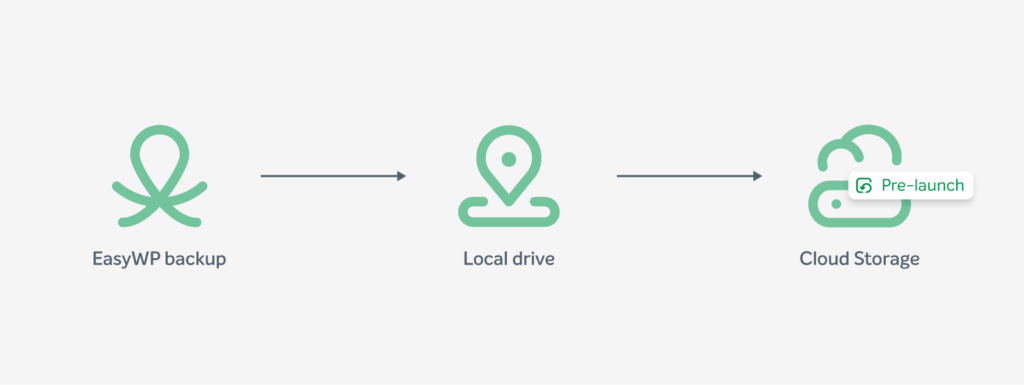
- Once it’s ready, choose Download Files and Download Database to grab the archives to your local device.
- Upload those archives to a trusted cloud storage provider like Google Drive, Dropbox, or OneDrive, or store them on an external hard drive.
From there, you can build a rotation system. For example, keep the three most recent off‑site copies labeled by date, and delete older ones once you’re confident you won’t need them anymore. That gives you multiple recovery points across both EasyWP and your own storage.
Step 5: Practice safe restoration before an emergency
A backup you’ve never tested is a backup you can’t fully trust. The safest time to learn how restoration works is before anything breaks.
With EasyWP, the restoration process is just as simple as creating a backup:
- Open your EasyWP dashboard and select the site you want to restore.
- Go back to the Backups tab and find the backup you want to use.
- Head to the three‑dot “More” menu and choose Restore.
If you manage more than one site, it’s worth picking a lower‑traffic project and running a full test restore on a quiet day. That way, when something serious happens on your primary site, you already know exactly what to expect.
How EasyWP keeps backups simple and integrated
Plenty of tutorials will show you how to back up WordPress with FTP, phpMyAdmin, or complex cron jobs. Those methods work, but they’re fiddly — and they ask beginners to handle database exports and file permissions right from day one.
EasyWP’s approach is different:
- Backups live in the same dashboard as your site status, domain connection, and performance tools, so you don’t have to jump between control panels or remember extra logins.
- Creating, downloading, and restoring backups are all single‑click actions, documented in Namecheap’s knowledge base with clear screenshots and step‑by‑step guidance.
- Security features like HackGuardian, MalwareGuardian, and WordPress Automatic Updates help prevent the very issues that force restores in the first place, giving you a stronger safety net around your content.
You’re free to layer on free backup tools or cloud workflows as your needs grow, but you don’t have to start there. For most sites, EasyWP’s built‑in backup and restore covers the critical “undo button” you need to experiment with confidence.
Turn your backup plan into a long‑term habit
By combining EasyWP’s one‑click backups with a simple schedule and off‑site storage, you can protect your WordPress site without ever touching a paid backup plugin. Over time, the habit becomes automatic, and because creating an EasyWP backup only takes a moment, it’s realistic to stick with the schedule..
If you’re ready to level up from the basics to a full maintenance routine, take a look at EasyWP’s guide to other important tasks you can add to your list.
FAQ: Automated WordPress backups on EasyWP
Do I still need a backup plugin if I’m using EasyWP?
In most cases, no. EasyWP already provides full-site backups and one-click restores directly from your dashboard, which covers what paid plugins typically offer for everyday protection. You might only consider an additional free tool if you want highly customized off-site or granular file-level backups.
How often should I back up my WordPress site?
For a typical blog or small business site, creating a backup before any major update (themes, plugins, WordPress core) and at least once a month is a good baseline. If you publish content or process orders daily, take backups more frequently so you never lose more than a few hours of changes.
Will restoring a backup affect my domain, SSL, or email settings?
Restoring an EasyWP backup rolls your WordPress files and database back to a previous point in time, but it doesn’t change your domain registration, DNS records, or external services like SSL certificates and custom email. That means you can safely revert your site’s content and design while keeping your addresses, inboxes, and security integrations exactly as they are today.


More articles from us!