How to edit code in WordPress (HTML, CSS, PHP)


While WordPress offers a great deal of flexibility thanks to countless plugins and themes, it might not have the specific settings you’re looking for. Everyone’s mileage is different and it’s impossible for developers to foresee every single scenario, let alone implement it.
Luckily, WordPress makes it quite easy to edit code and make the necessary changes for your project. With that said, you should have at least some experience working with HTML, CSS, and PHP files before attempting any tweaks.
In this post, you’ll learn how to:
- Edit HTML through WordPress dashboard
- Edit CSS code through WordPress dashboard
- Edit PHP through WordPress dashboard
- Edit your theme’s files via FTP/SFTP
General recommendations
Some quick tips that should help you with your code modifications.
Use a child theme. In simple terms, it’s a sub-theme you can make changes to without modifying your main theme (the parent one). As a result, you can keep your source files intact while also implementing the necessary modifications through the child theme. Another reason to use a child theme is to avoid losing your customization to a theme update which overwrites all your changes. If your theme doesn’t have a child one, you can easily create it by following this tutorial.
Create backups. Preparing backups is always a good idea when working with your site’s files. This allows you to revert the changes back at any time by simply reuploading the original file. It’s especially important for any PHP code you modify.
How to edit HTML code through WordPress dashboard
Block Editor (Custom HTML block)
If you need to add a piece of an HTML code, the quickest (and the easiest) way to do so is by using the Custom HTML block.
- Choose a place where you want your HTML code added.
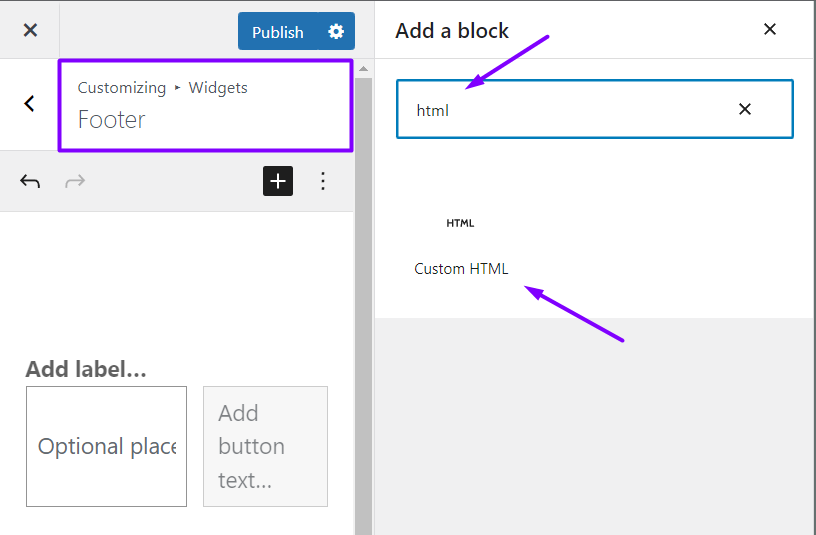
- Click on the + sign and search for the Custom HTML block
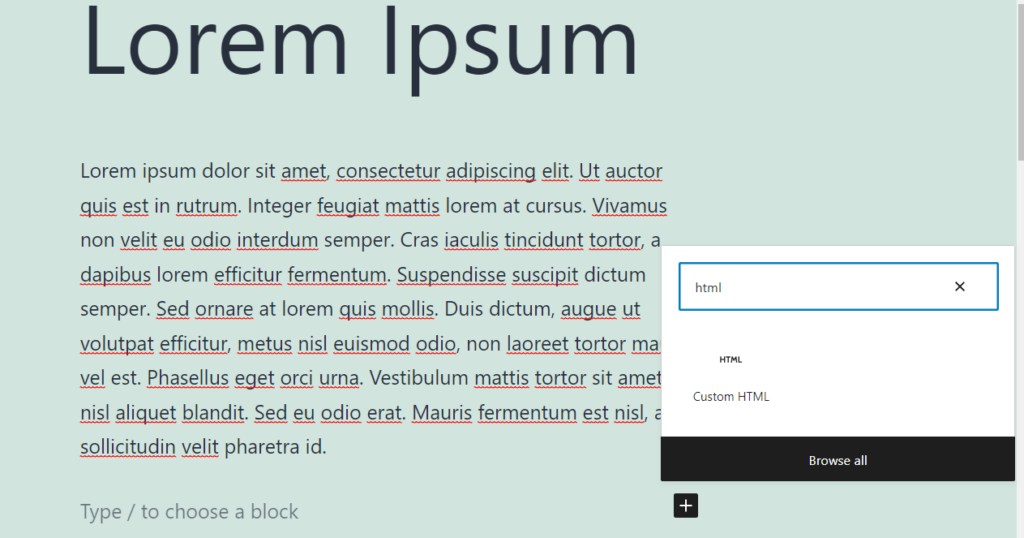
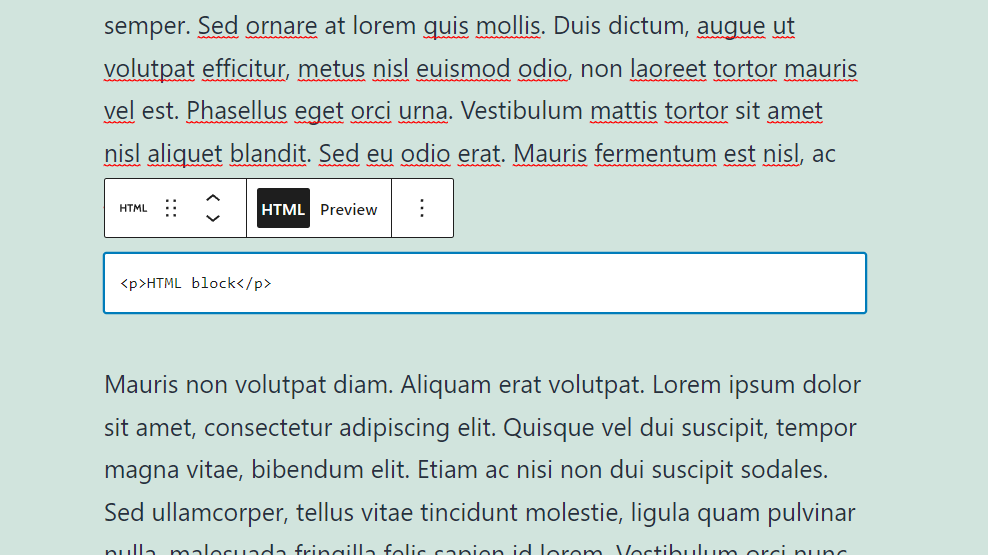
- Once you’ve found it, select it and simply add your HTML code in the text field:
Classic editor
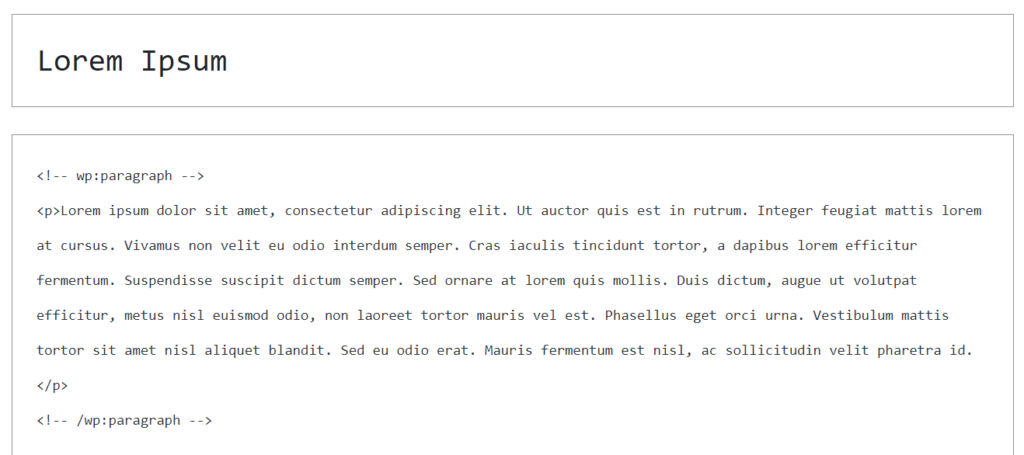
Now if you need to edit HTML code of your existing content and Custom HTML is not going to cut it for you, WordPress also lets you switch to the Code editor.
To do so, either use this shortcut on your keyboard: Ctrl + Shift + Alt + M, or change it in the page settings as shown in the screenshot:
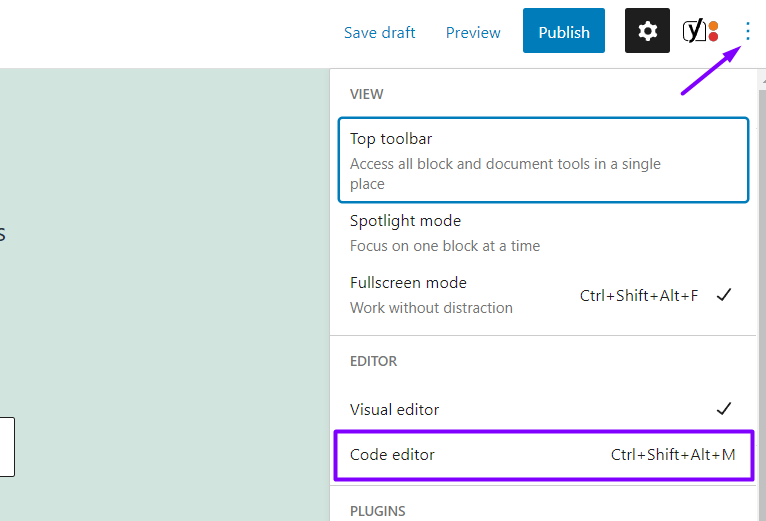
By doing the switch, your entire page or post will appear in HTML format.
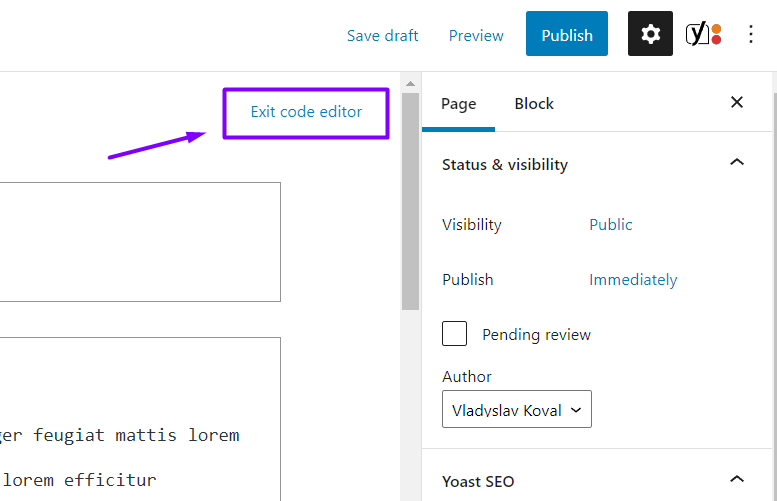
To go back to the Block editor, click on Exit code editor button in the top right corner:
Widgets
There’s also a handy way to add HTML content in your widget areas. Depending on your theme, you might have several of those. Usually, you’ll have your widgets in the footer area.
All you need to is to navigate to Appearance > Customize in your WordPress dashboard and go to the Widgets tab. There, you can manage your widgets as well as add HTML through the Custom HTML block we got familiar with earlier.
How to edit CSS code through WordPress dashboard
How to add custom CSS code
WordPress allows you to add custom CSS code without modifying any of the files. This method is quite handy as you can easily make the necessary changes without messing with your stylesheets. However, for site-wide modifications, we recommend checking your theme settings first or working with the theme files directly.
To add your custom CSS code, navigate to Appearance > Customize in your WordPress Dashboard and click on the Additional CSS tab. Then copy over or write your CSS rule and hit Publish.
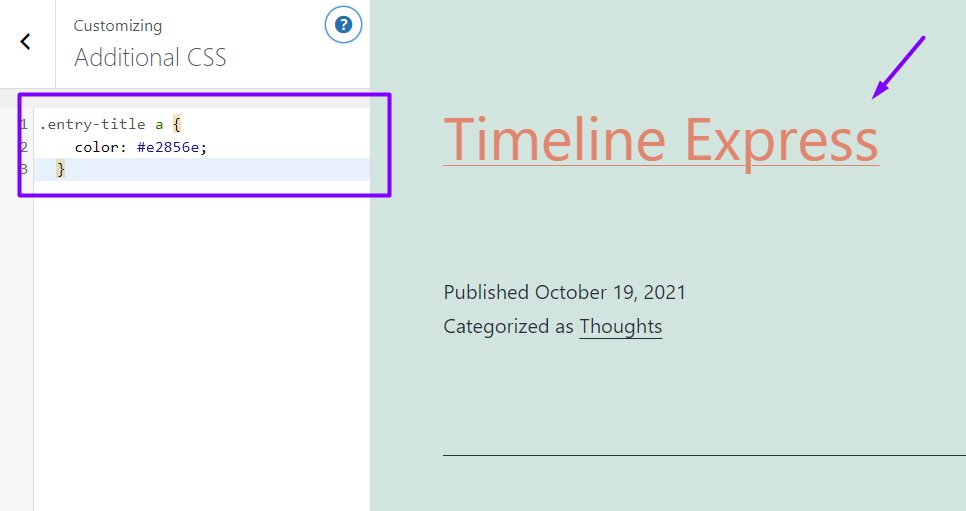
One important thing you need to note about Additional CSS is that the CSS code you add there is stored in your WordPress database only, so you might want to back it up from time to time.
How to edit CSS via Theme Editor
When it comes to site-wide CSS tweaks, such as changing your site’s color scheme, you can edit the style.css file of your active theme. You can find it under Appearance > Theme Editor in your WordPress dashboard.
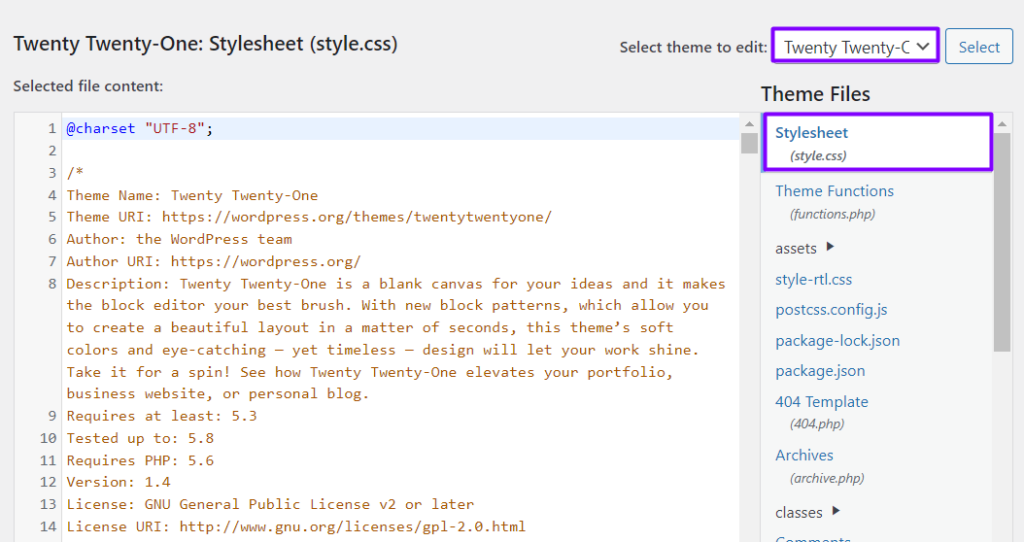
Don’t forget to make changes within your child theme’s stylesheet only.
How to edit PHP code through WordPress dashboard
Before we proceed to editing PHP code in WordPress, we should warn that any changes to your PHP files need to be done with caution. Messing up PHP syntax is easier than you might think and it can easily take your website down until you restore the original file.
Another reason not to make changes to your PHP code directly is there are usually plugins for virtually any type of customization you’d want on your website. Ranging from custom post types to adding tracking code to your website’s header.
With that in mind, we strongly recommend you modify PHP code only after you’ve exhausted all other options.
Theme Editor
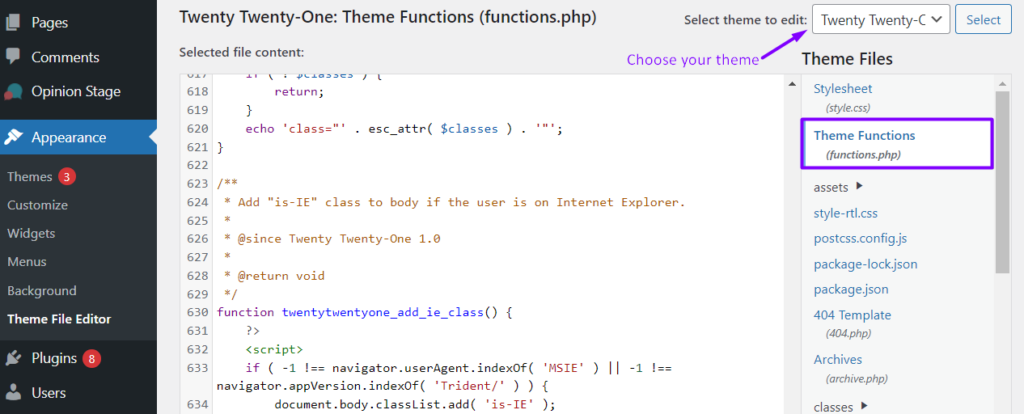
To add or change PHP code through your WordPress dashboard, first, go to Appearance > Theme Editor. Next, choose your active theme and locate functions.php (Theme Functions).
How to edit code via FTP/SFTP
While editing HTML in WordPress through its dashboard is nice and easy, there’s an alternative way to make changes to the code, namely through accessing your site files through SFTP.
If you don’t know how to connect to your server via FTP/SFTP, you can follow these instructions. Note that you’ll need software like Filezilla or Total Commander both of which are free. EasyWP users can also check this quick tutorial.
There’s an undeniable advantage to modifying your WordPress files through SFTP.
It’s much safer. You’ll always be able to revert changes by reuploading the original version of the file. It’s highly advisable to keep a backup of your files in case, for example, you no longer can access your website after the edits have been made. In this scenario, you can just swap the edited file with the original one and restore your WordPress website to its previous state.
Once you’ve connected to your server, go to wp-content > themes and open the folder of the child theme that you want to modify files of.
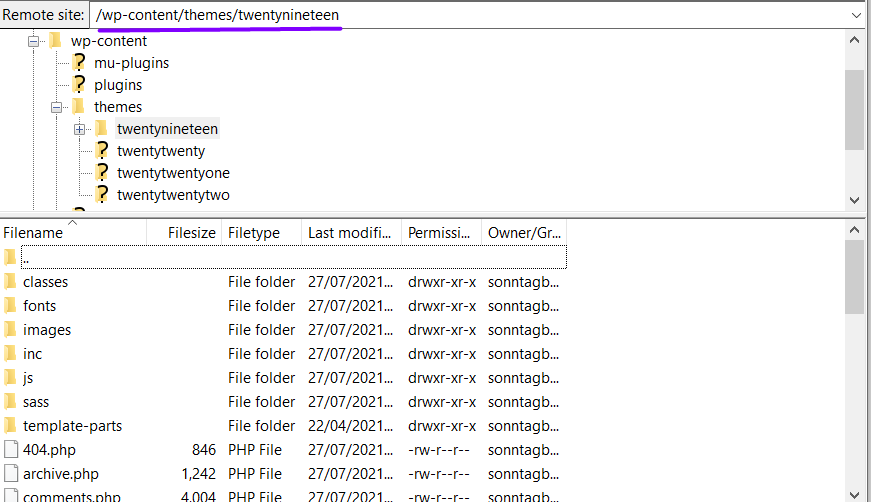
As mentioned previously, you should only make changes to the child theme as the parent one will be overwritten in case of an update.
Conclusion
We hope this article proved useful to you and you managed to successfully make the necessary changes to your WordPress website. If you have any questions, feel free to leave a comment or ping us on Twitter.
Want to learn more about WordPress? Check our latest posts on how to disable WordPress comments or our guide to detecting and removing malware in WordPress.
FAQ: Safely editing WordPress code
The built‑in editor works for quick tweaks, but using SFTP is safer. That’s because with SFTP you can download files, test changes locally, and easily restore the original if something goes wrong. It also reduces the risk of locking yourself out of the dashboard due to a syntax error.
A child theme lets you customize HTML, CSS, and PHP without touching the parent theme, so you keep your changes intact when the parent theme is updated. This is good advice, but can be confusing for some users. Keep a log of any WordPress code that you edit so if an error surfaces, you can retrace your steps.
Always back up your site, work in a child theme or staging environment, and make small, testable edits, because even a minor PHP error can make your site temporarily unavailable. EasyWP offers easy, one-click backups from the dashboard, so you can easily restore as needed if something goes wrong.


More articles from us!
Increase page speed with a WordPress image optimizer

How to Monitor Your WordPress Website Health with More Tools