Build a WordPress site in minutes with Brizy AI and EasyWP

Building a professional website used to mean choosing between hiring a developer (expensive), spending weeks learning a page builder (tiring), or settling for a template that looked exactly like everyone else’s (uninspired). None of those options are particularly appealing, especially when you just want to get online and focus on what you actually do.
Brizy AI for WordPress, together with EasyWP’s managed WordPress hosting, changes all of that. You can go from a blank page to a polished, fully structured website in minutes, no techie knowledge needed.
Here’s what makes EasyWP and Brizy AI such a natural synergy.
What is Brizy AI for WordPress?
Brizy is a visual website builder for WordPress, and its AI-powered version takes things a step further. Instead of dragging and dropping elements one by one, you describe your business or project, and Brizy AI generates an entire website for you, including the layout, structure, page content, and design. The latest release, Brizy AI 1.7, moved the whole process to a prompt-based flow. You describe your business in your own words, and the AI handles the structure, design, and content from there.

You can regenerate a block you’re not happy with, swap out images or text, remove sections that don’t fit, and add new ones later without starting over. The AI also makes design decisions based on your industry, so the fonts, colors, and icons it selects are chosen to match your type of business, not pulled from a generic template.
The result? A website that starts from a much more finished place than a blank canvas, and that’s much faster to polish into something you’re genuinely proud of.
Quick note: Brizy AI for WordPress is available exclusively on Brizy PRO plans. There is a free version of the Brizy plugin, but the AI generation features covered in this guide require a paid plan. You can explore Brizy Cloud for free (limited generations are available without an account) to get a feel for how the AI works before committing. On the EasyWP side, Brizy PRO is provided for free with Turbo and Supersonic plans.
How EasyWP and Brizy AI work in harmony
A great website builder still needs a reliable foundation to run on. EasyWP is a managed WordPress hosting platform built specifically for WordPress, which means a lot of the technical setup and maintenance that would otherwise fall on you happens automatically in the background.
With Brizy AI and EasyWP, you get a setup where neither tool is asking you to be a developer. EasyWP handles the hosting, WordPress installation & optimization, automatic updates, and security. Brizy AI generates a great first draft and starting point for your visuals and content. You can then build on this foundation using Brizy’s intuitive tools, combined with your own creative decisions.
A visually rich site is only impressive if it loads before your visitor loses patience. EasyWP’s NVMe-powered storage means your Brizy-built pages stay speedy, regardless of how much design is packed into them.
Step-by-step: Launch your WordPress site with Brizy AI and EasyWP
Step 1: Get started with EasyWP
Before installing Brizy, you’ll need an EasyWP account and a WordPress site up and running. Simply choose an EasyWP plan and get started. EasyWP installs WordPress for you automatically, so there’s no manual setup involved.
You can also view our detailed walkthrough on how to create a WordPress site with EasyWP.
If you’re an existing EasyWP customer, you may have already seen Brizy show up in your dashboard. Installation is super easy, and from there the AI builder is ready to go.
Step 2: Install and activate Brizy
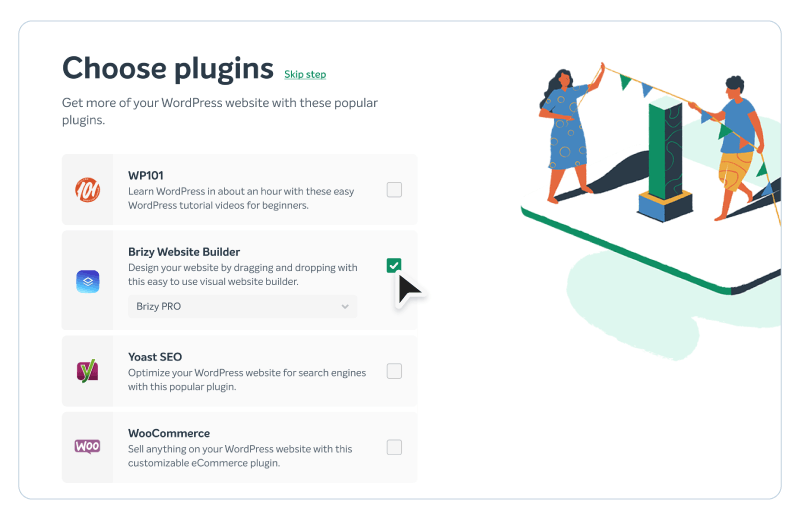
On EasyWP’s Turbo and Supersonic plans, you can get Brizy PRO for free. During the initial website setup, you’ll find it listed in the Choose Plugins step of the EasyWP wizard. Simply select Brizy Website Builder, choose Brizy PRO from the dropdown, and continue. If you’ve already set up your site, head to your EasyWP dashboard, go to Add-ons, and grab it from there.
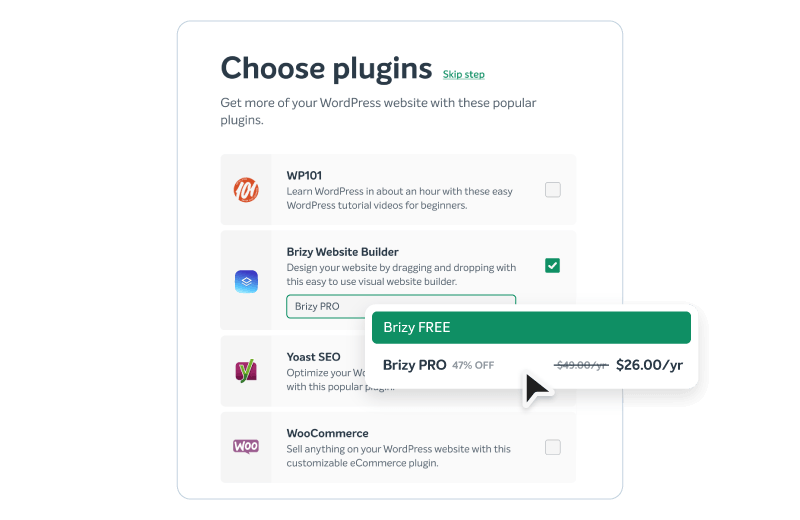
On the Starter plan, you can purchase Brizy PRO at a discounted rate from the same plugins step in the wizard, or from the Add-ons menu after setup. Alternatively, upgrading to a Turbo or Supersonic plan gets you Brizy PRO included at no extra cost.
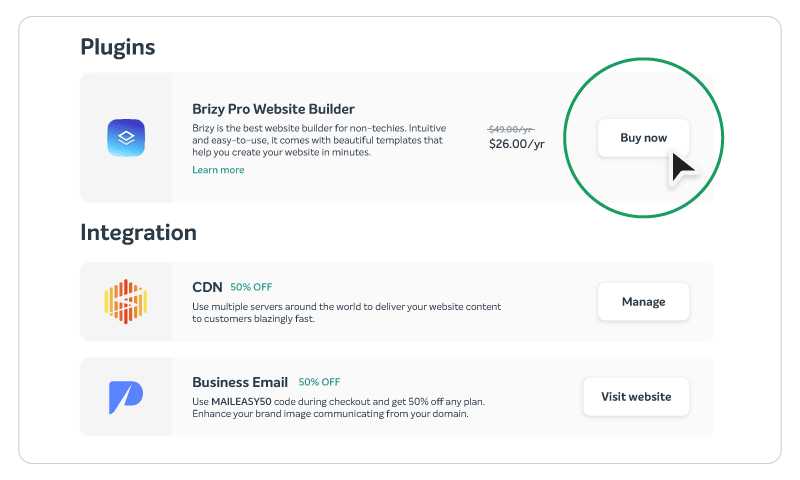
Once activated, the Brizy AI features will be available directly from your WordPress editor.
Step 3: Create a new page and generate with Brizy AI
Step 1: Find the Generate with Brizy AI button
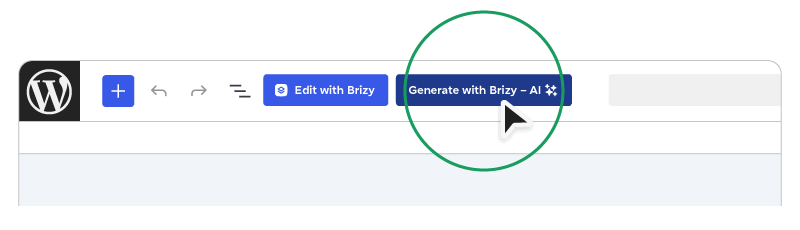
Before generating your site, give your new page a title. Once named, look for the Generate with Brizy AI button in the top toolbar of the WordPress editor. Selecting it launches the Brizy AI workflow, skipping the traditional drag-and-drop process and taking you straight into AI-powered site building.
Step 2: Describe your business
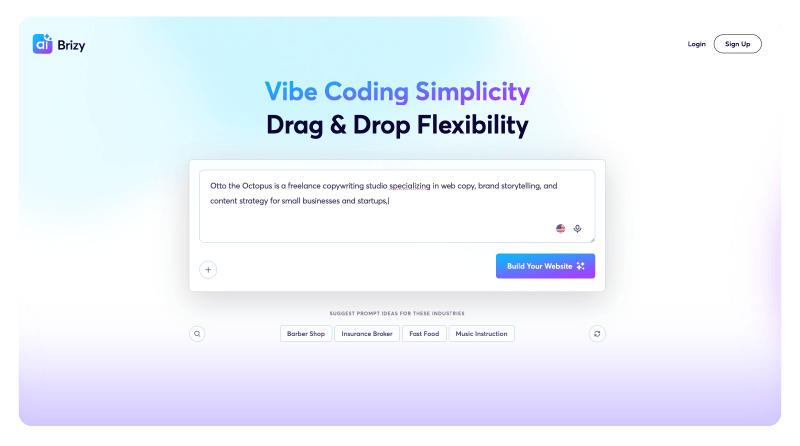
Brizy AI now works from a single prompt. Describe your business in the text box, including what you do, who you serve, and anything that makes you distinct. There’s no need to fill in separate fields for your business name or industry, as the AI picks up on all of that from your description.
For this tutorial, we’re building a site for a new freelance copywriting studio: “Otto the Octopus is a freelance copywriting studio specializing in web copy, brand storytelling, and content strategy for small businesses and startups.”
The more specific you are here, the more tailored your generated site will be. When you’re ready, hit Build Your Website.
Step 3: Add your social accounts (optional)
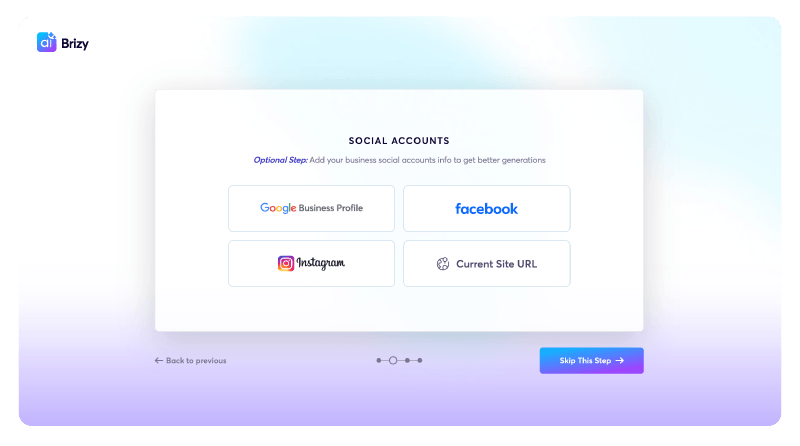
Brizy AI can pull additional context from your existing online presence. Connect your Google Business Profile, Facebook, or Instagram account, or point it at your current website URL, and the AI will use that information to generate more accurate copy and design choices.
This step is entirely optional. If you’d rather keep things simple, select Skip This Step and move on.
Step 4: Choose your site pages
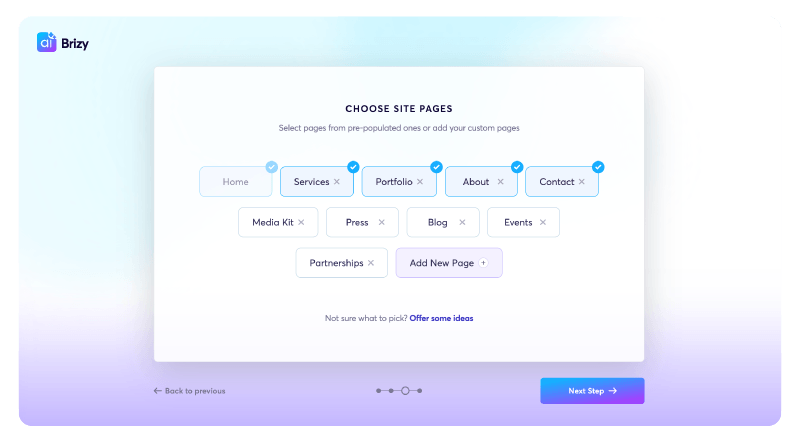
Here you choose which pages your site will include. Brizy AI pre-populates a set based on your description, and you can add or remove pages as needed. You can also add a custom page with a specific name and purpose. For Otto the Octopus, we’re keeping Home, Services, About, Testimonials, and Contact. Hit Next Step when you’re happy with your selection.
Step 5: Set your colors and typography
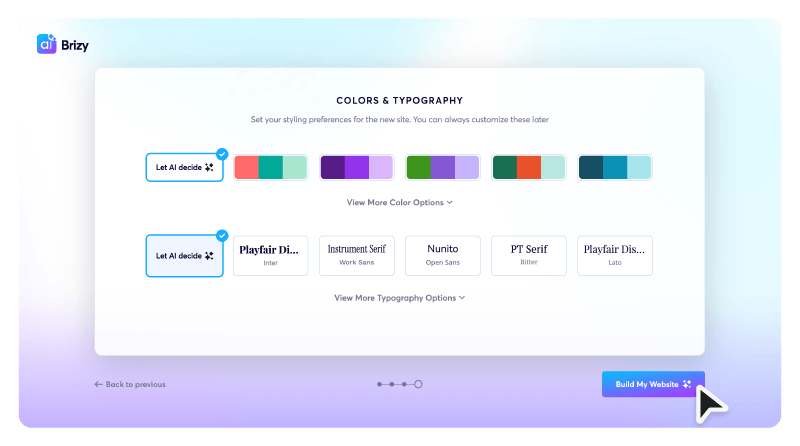
Next, choose a color palette and font pairing for your site. Options include Playfair Display, Montserrat, Lora, Oswald, and DM Serif Display, with more available under the expandable menus. If you’d rather let the AI make the call based on your business description, leave Let AI decide selected for both. Either way, you can change all of this later in the Brizy editor.
Step 6: Your site is being generated
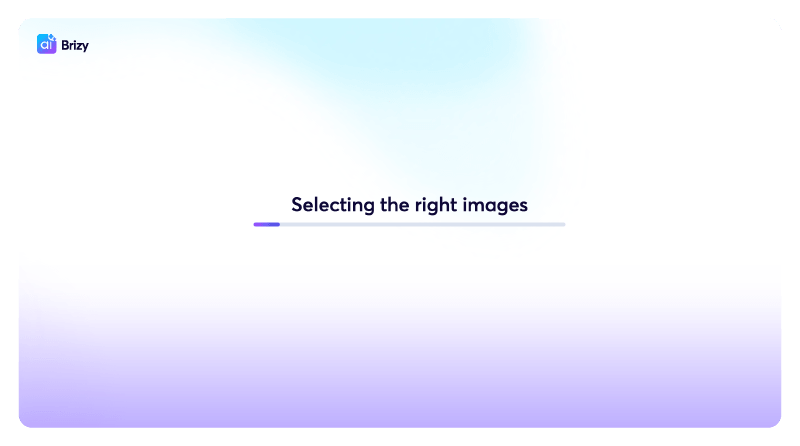
Sit back. Brizy AI is now building your site, applying your styling preferences and generating layouts and content page by page. The progress bar shows you where it is in the process, and this usually takes just a few seconds.
Step 7: Your generated site is ready
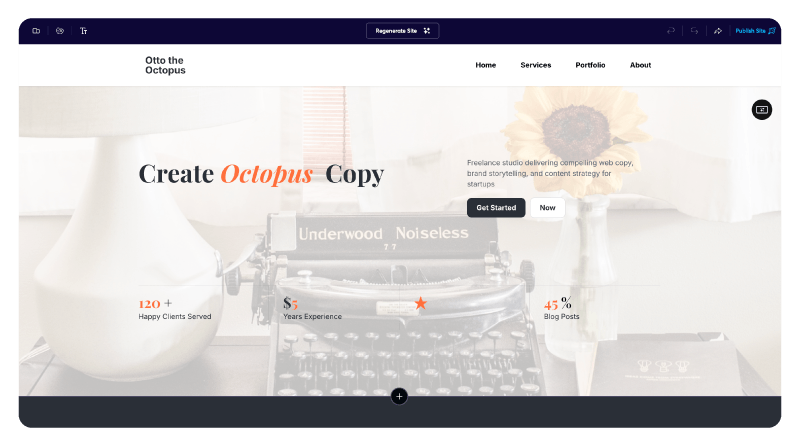
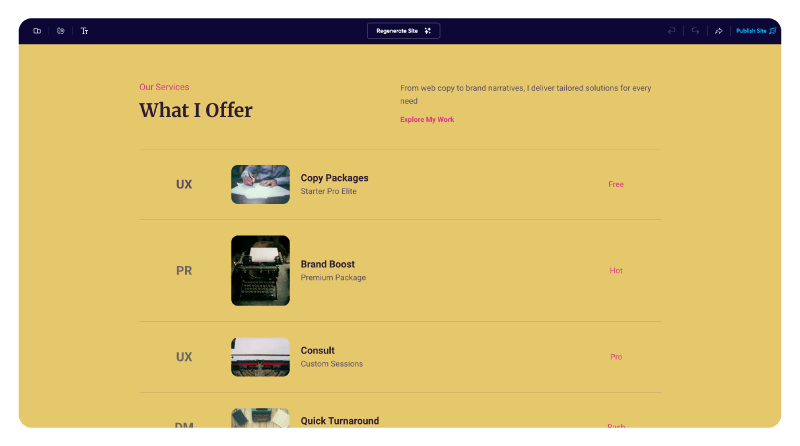
Your site has been created, with the full navigation menu built out automatically, including all the pages you selected in Step 4. At this stage, you’re looking at a preview. To make your site live, select Publish Site in the top right, or experiment with the AI features described in steps 8 to 12 first.
Step 8: Regenerate a page
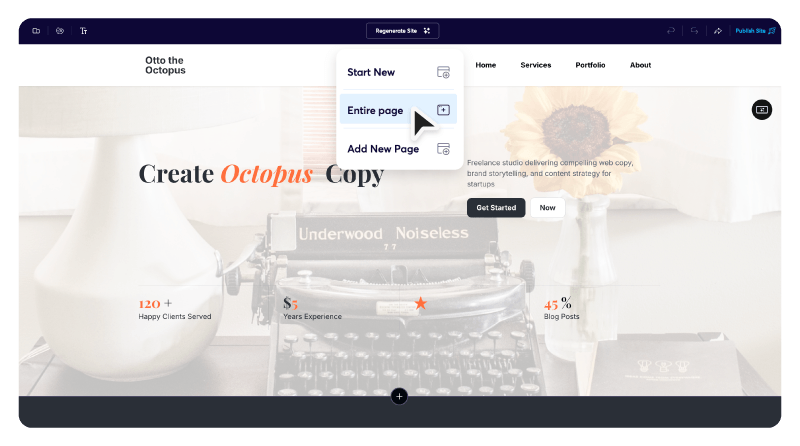
Not happy with how a page has turned out? Select Regenerate Site in the top toolbar and choose Entire page to have the AI produce a fresh version, complete with new layout, copy, and imagery. Selecting Start New regenerates the whole site from scratch.
Step 9: Your regenerated page
Instantly, Brizy AI has produced a completely new take on the homepage, with different imagery, a new headline, and a fresh layout. No need to source, resize, or upload anything manually. If you’re still not happy, you can regenerate again until you land on something that works.
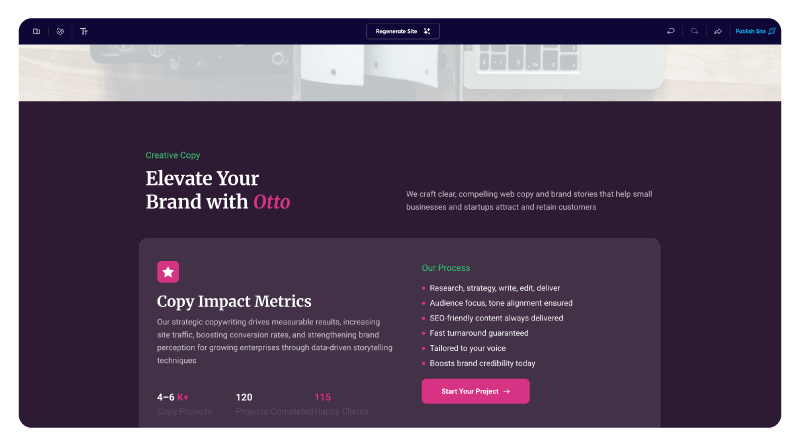
Step 10: Add a new page
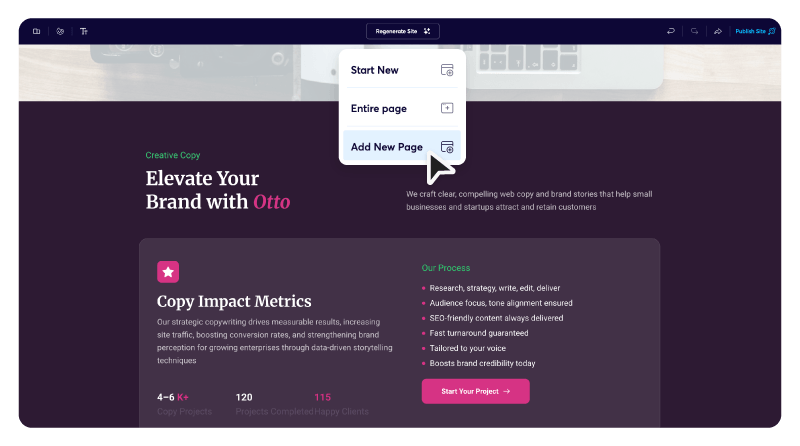
Your site does not have to stay as it was first generated. Open the Regenerate Site menu again and select Add New Page to expand your site at any time, without rebuilding what you’ve already got.
Step 11: Choose which pages to add
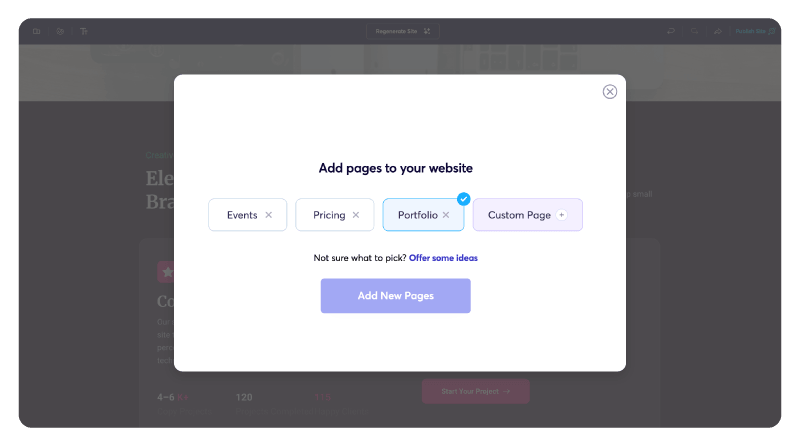
Brizy AI suggests pages that would suit your business, and you can also create a custom page with a name of your choosing. For Otto the Octopus, we’re adding a Portfolio page. Select Add New Pages to generate it.
Step 12: Your new page
Brizy AI has generated the Portfolio page and added it to the site navigation automatically, using the same visual style as the rest of the site. From here, you can edit the content, regenerate sections, or keep building.
Step 4: Import and refine your generated site
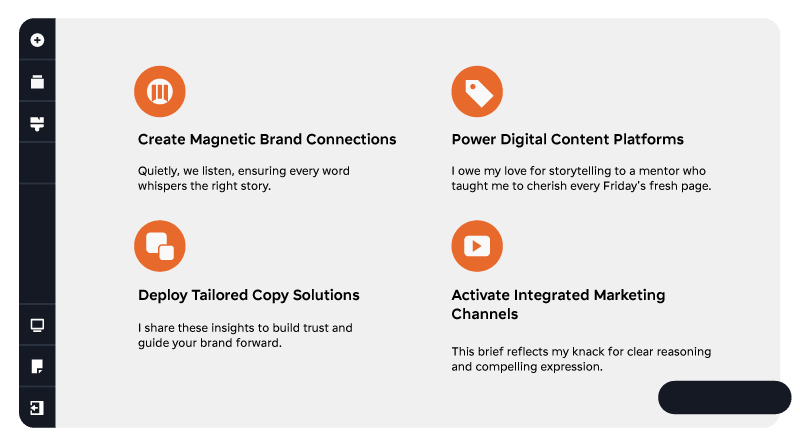
Once the AI has finished generating your site, select Publish Site to open your site directly in the Brizy visual editor. Your generated pages, sections, and content are ready to work with straight away.
From here, you can work through your site block by block:
- Replace individual images or all images across a section
- Swap out text directly in the visual editor
- Remove blocks that don’t fit your page structure
- Add new blocks (hero sections, contact forms, testimonials, and more) using the + button between sections
- Regenerate an entire page or add new pages using the Regenerate Site menu
You’re not locked into the first version the AI produces. It’s more like an intelligent starting point rather than a finished webpage.
Step 5: Customize and publish
With the structure and content in place, use the Brizy editor to fine-tune your site. Adjust colors, typography, and layout to match your brand exactly. Add any additional pages you need (Brizy AI can generate these too, and they’ll be automatically added to your site navigation).
When you’re happy, publish and your site is live.
Must-know Brizy AI features
It’s worth spending a moment on a few of the specific things Brizy AI can do, because some of them go beyond what you might expect from a standard page builder.
Block-by-block generation means you’re never stuck with a section that doesn’t work. Each part of your page is independent, so you can improve one area without touching the rest.
Multi-page creation lets you generate additional pages during the AI setup flow, including custom pages with specific goals or AI-suggested pages based on your industry. Every new page slots into your site navigation automatically.
Targeted regeneration gives you precise control. You can regenerate an entire page, a single block, only the text, only the images, or just the colors and typography. This makes iteration much faster than rebuilding from scratch.
Industry-aware design means the AI selects icons, fonts, and color palettes based on the type of business it identifies from your description. A fitness brand and a law firm will get very different starting points, which is exactly as it should be.
Keeping your Brizy site running effortlessly with EasyWP
Having EasyWP in the background means the hard work doesn’t stop when you hit publish. Here’s what’s keeping your site running smoothly behind the scenes.
WordPress Automatic Updates are handled by EasyWP, meaning your WordPress core version stays current without you having to monitor and apply updates manually. For a Brizy-built site, keeping WordPress up to date also helps ensure the Brizy plugin continues to perform as expected.
Security is managed at the hosting level with EasyWP’s Guardian Suite, which includes HackGuardian and MalwareGuardian.Your site gets these protections built in, with no extra plugins needed. A free SSL certificate is also included, so visitors see the padlock in their browser from day one.
Performance is another area where your hosting setup makes a difference. EasyWP runs on cloud infrastructure optimized specifically for WordPress, with NVMe-powered storage that keeps read and write speeds high even as your site grows. The result is a Brizy site that stays speedy as you add more pages, visual content, and traffic over time.
In short, EasyWP takes care of the technical layer so you can focus on growing your site rather than maintaining it.
A speedy way to your first WordPress site
Building a WordPress site no longer has to mean weeks of setup, a steep learning curve, or a budget for a developer. With EasyWP managing the foundation and Brizy AI generating your pages from a single prompt, you can have a polished, professional site live in a fraction of the time.
Get started with EasyWP and see how quickly you can go from idea to online.
FAQ
No, absolutely not. In fact, that is the main purpose of this combination. EasyWP handles the technical side of WordPress hosting automatically, and Brizy AI generates your site visually from a simple business description. You can go from a blank page to a fully structured website without touching a line of code.
Brizy PRO is included for free on EasyWP’s Turbo and Supersonic plans. On the Starter plan, you can purchase Brizy PRO at a discounted rate during setup or from the Add-ons menu in your EasyWP dashboard. Upgrading to a Turbo or Supersonic plan gets you Brizy PRO included at no extra cost.
Yes, and that’s one of its strengths. Every section of your generated site is independently editable. You can regenerate individual blocks, swap out images or text, adjust colors and typography, and add new pages at any time, all without rebuilding from scratch.
The generation process typically takes just a few seconds. Once you’ve completed the setup flow (prompt, optional business content, page selection, and styling), Brizy AI builds your site and has it ready to edit almost immediately.
EasyWP handles WordPress core updates automatically, helping keep your installation current and secure. Brizy is regularly updated to remain compatible with WordPress, so your website should continue to work smoothly as new WordPress versions are released.


More articles from us!
The EasyWP Dispatch – Navigating the Gutenberg conundrum

How to integrate business phone service with WordPress