3 easy ways to add social media icons in WordPress


Social media icons may be small, but don’t underestimate how impactful they can be. These little symbols help visitors find you on the platforms you’re putting time and effort into building, so not having them is a missed opportunity to boost your following. They also add credibility, give you a thumbs up in the trust department, and make your site feel complete.
If this is your first time adding social media icons to WordPress or you need a reminder of how to add them, you’ll find these steps super easy.
We’ll show you several ways you can quickly add them to your site. Some of these methods may already exist as part of your theme, but WordPress also includes a built-in social icons block that works with almost any design. If you have a specific need or want more control, you can use a WordPress social media icon plugin – we’ve included a few popular ones in the FAQ.
Before we dive in, you might want to learn how to edit your WordPress footer first, as that’s the default place most websites place social media icons.
Easy way 1: Add social media icons using your theme’s social menu
Many WordPress themes include a “social menu”, which turns your social media links into icons automatically. It’s one of the easiest ways to display social icons without extra hassle and tools. Once you add your links, your theme handles the styling for you. This method is especially useful if your theme already supports social links.
How do I find out whether my theme has a social menu?
You’ll usually find your theme’s social menu in the WordPress Customizer, which is the same place you manage menus, colors, and layout settings. To access it, go to Appearance > Customize > Menus in WP Admin.
Some themes like Astra, Neve, and Twenty Twenty-One include a special menu location called “Social Links” or “Social Menu.” When you assign a menu to this location and add your social profile URLs, the theme automatically displays them as icons instead of text links.
How to create your social menu
Follow these steps to create your social menu:
- Go to Appearance > Customize in your dashboard.
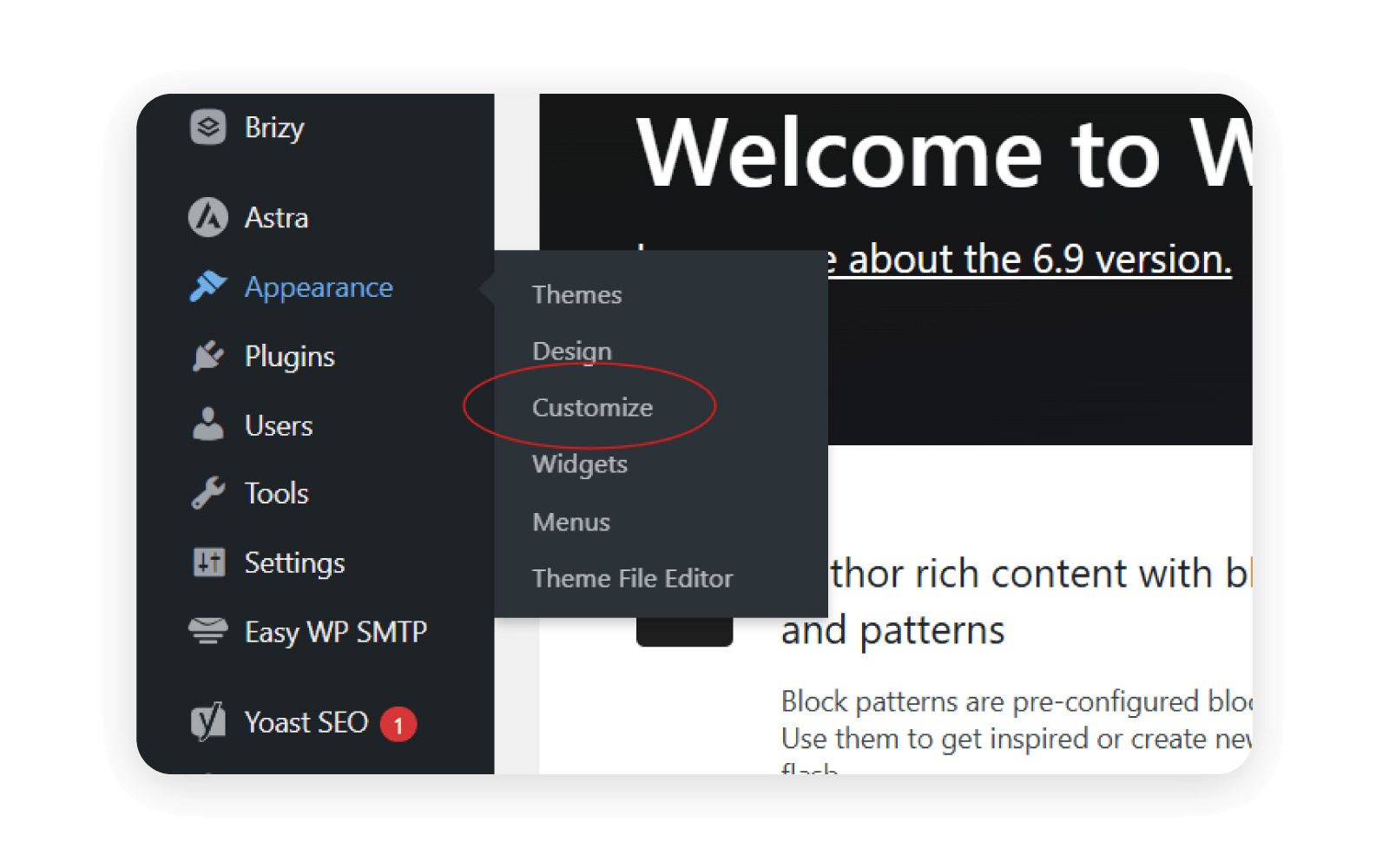
- Select Menus, then choose Create New Menu.
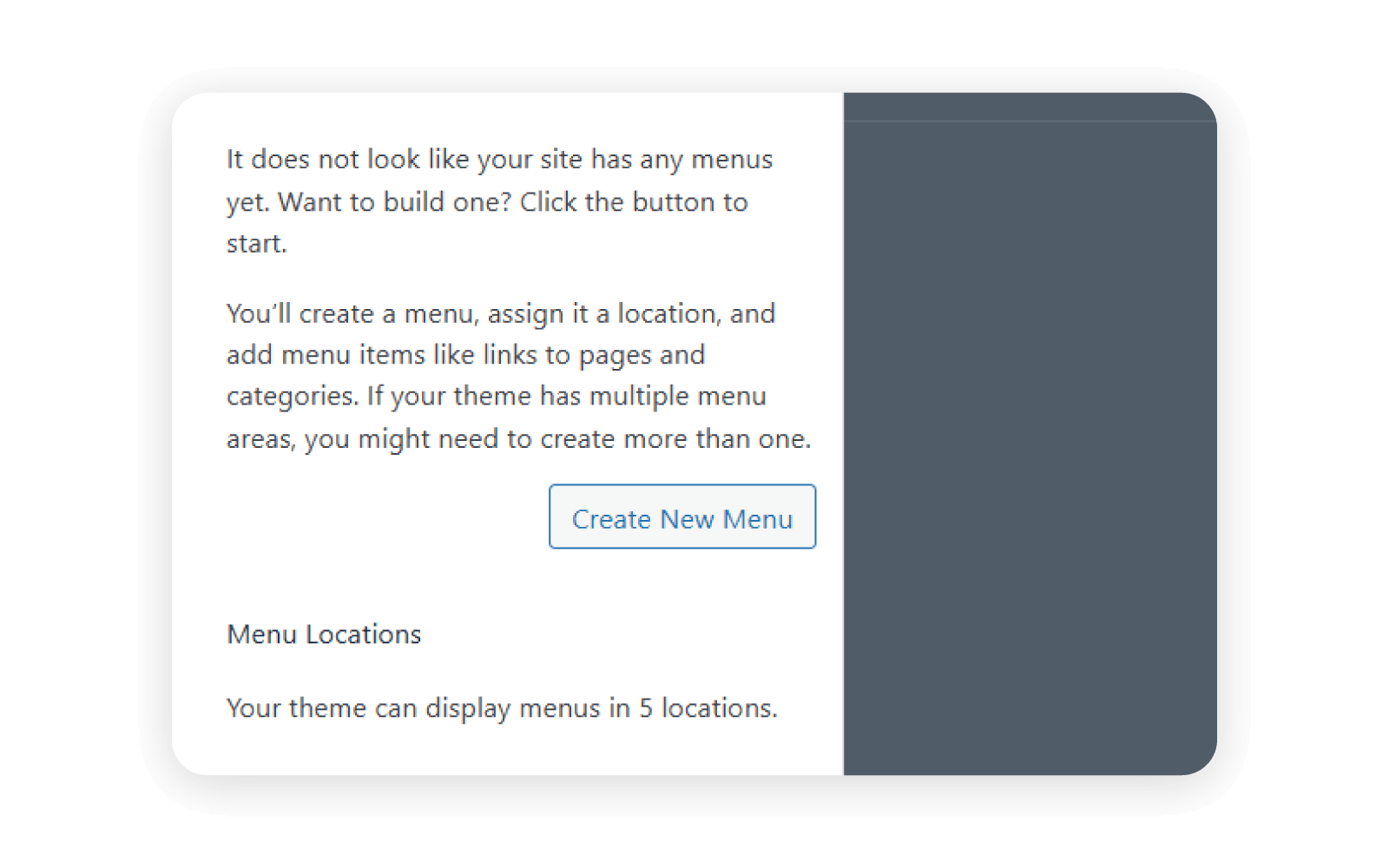
- Name the menu something like “Social Menu.”
- Choose the display location that refers to social links.
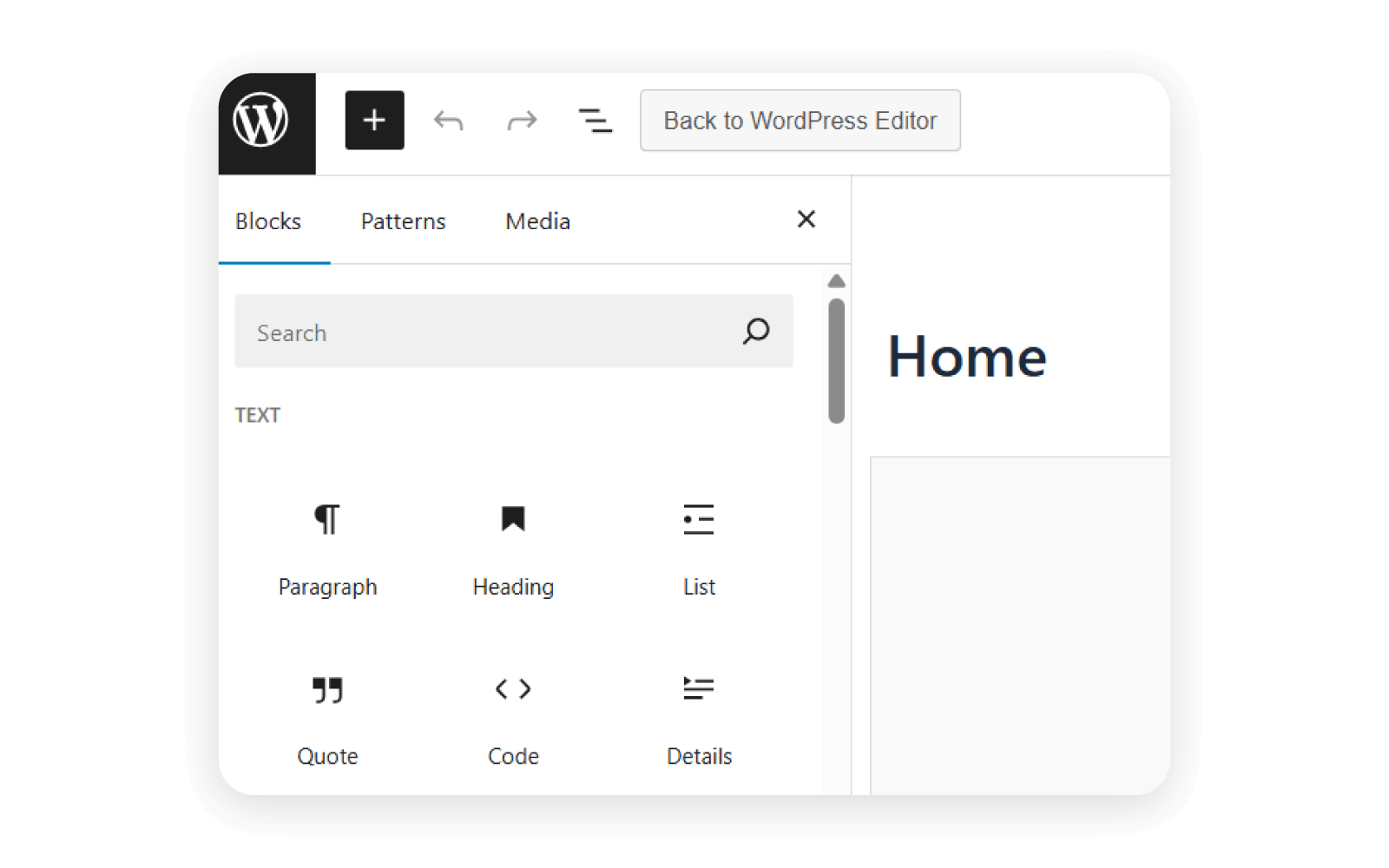
- Select Add Items, then hit Custom Links.
- Paste the URL of your social media profile, then add a clear label in the Link Text box. In our example, we’ve used the EasyWP X account.
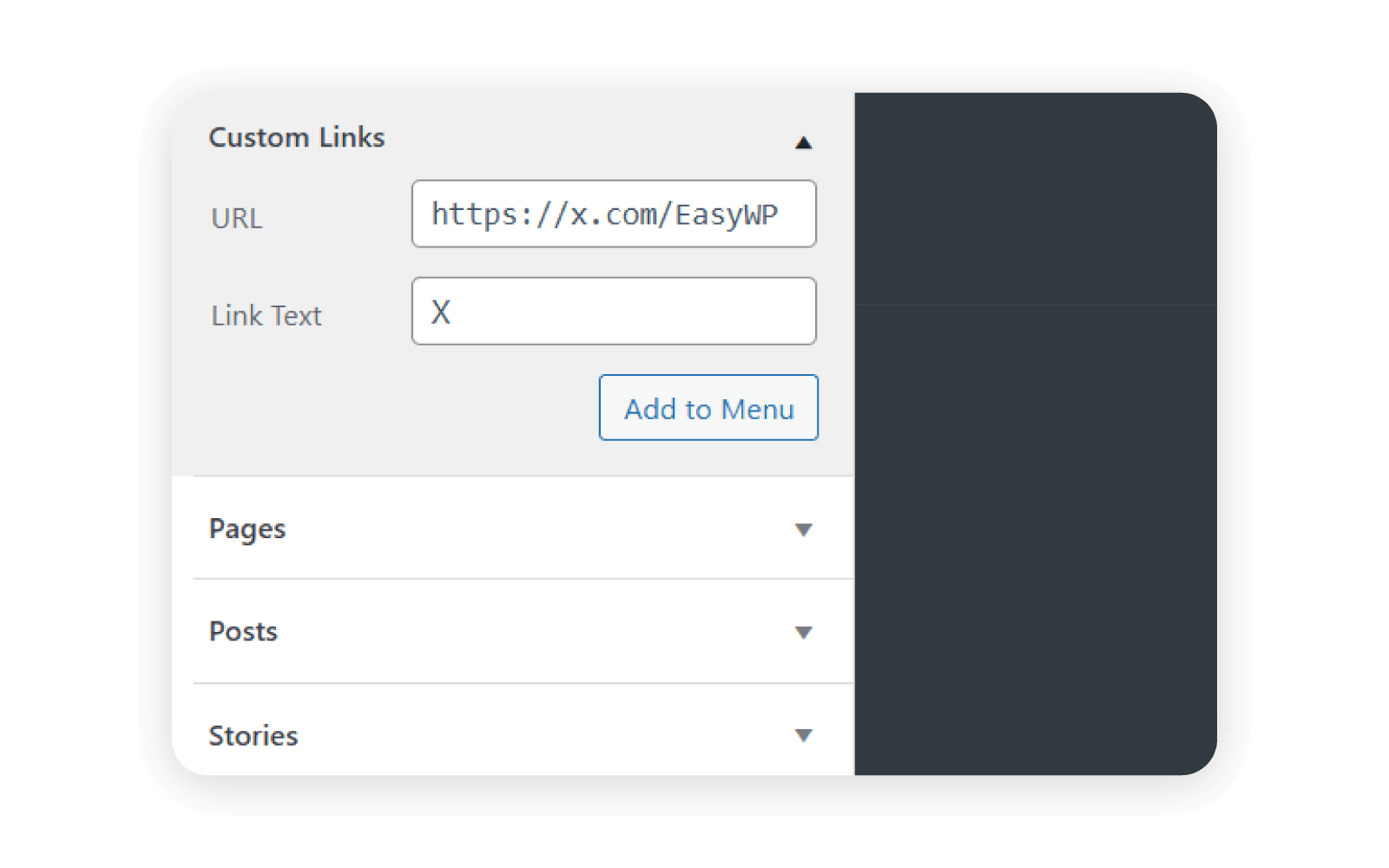
- Next, select Add to Menu so the link appears in the menu structure. Once added, remember to Save!
Pro Tip! You can activate the Open link in a new tab option when adding social media links. This keeps visitors on your website while still letting them view your social profile, which can help reduce drop-offs and keep people engaged with your content for longer. You can switch this on by selecting the drop down menu next to Custom Link.
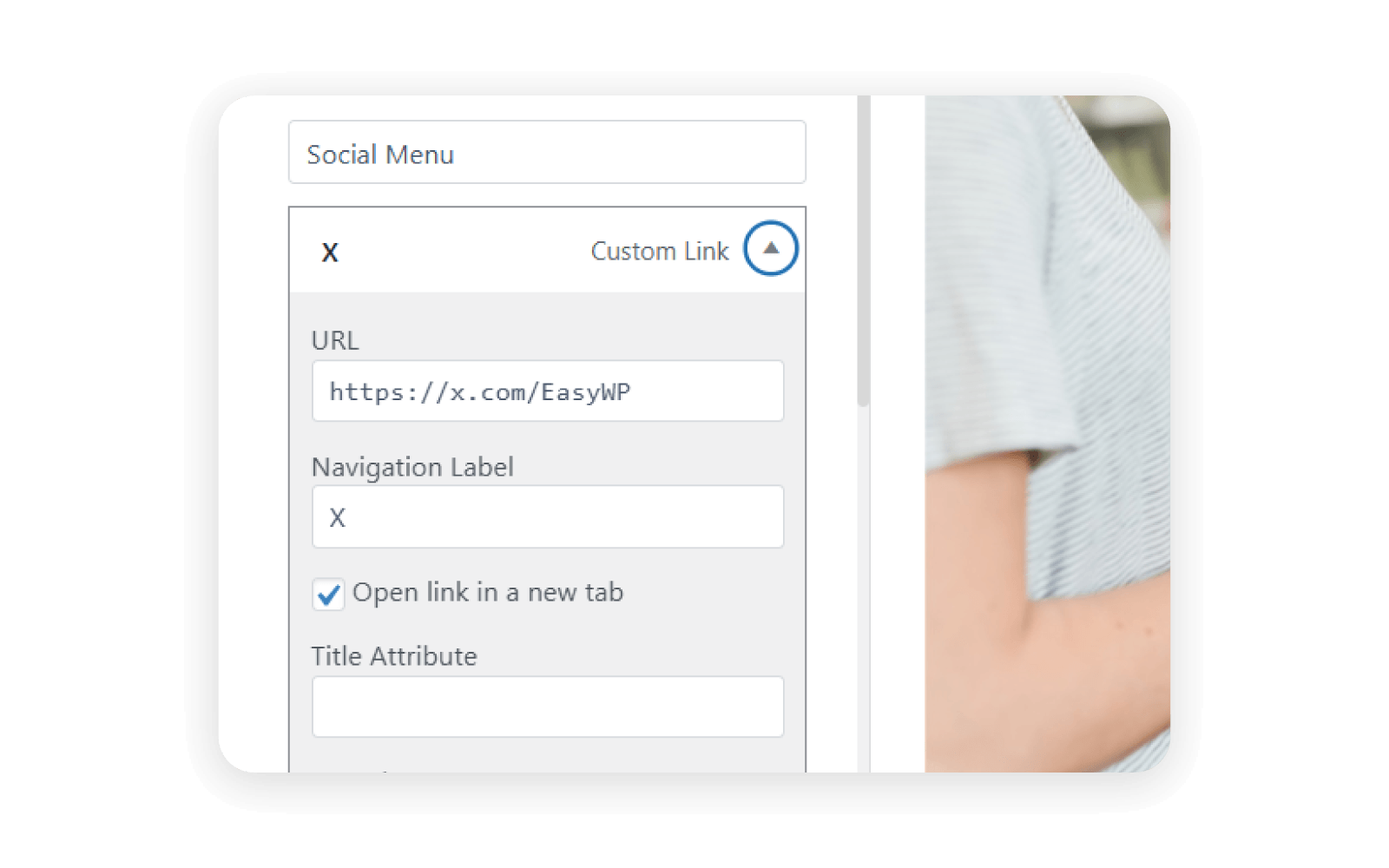
Your theme will convert your link into the correct icon. If you add Instagram, you’ll see the Instagram icon. If you add Facebook, you’ll see the Facebook icon. It all happens automatically!
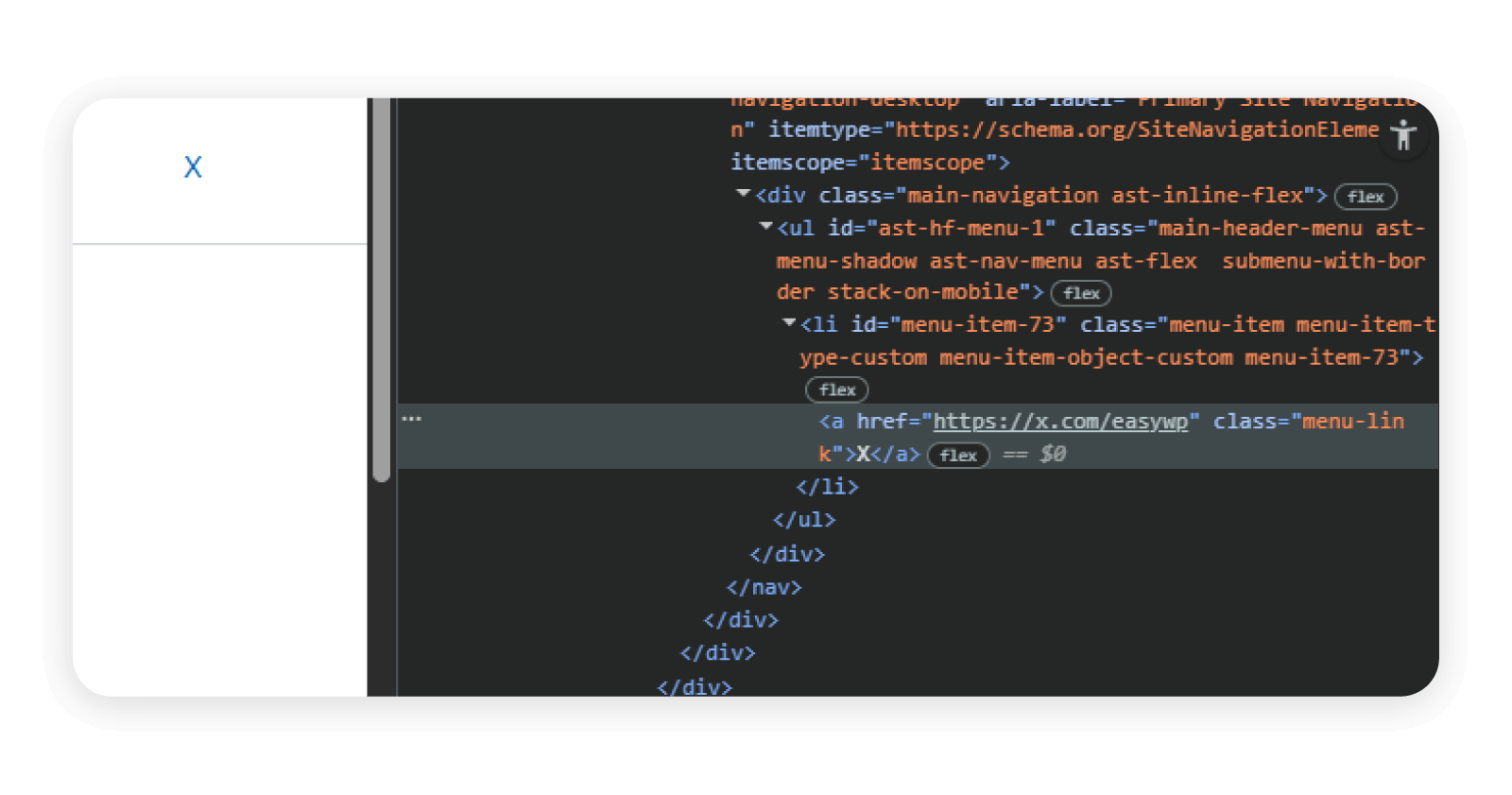
If you don’t see a social menu location, that means your theme does not support this feature. In that case, try one of the next two methods instead.
Easy way 2: Add social media icons using the Social Icons block
WordPress includes a built-in Social Icons block. You can use it to place icons inside pages, posts, headers, footers, or widget areas. This block works with almost every modern theme, including block-based themes.
It’s flexible and beginner-friendly, and you don’t need extra social media plugins to use it.
Where do I find the Social Icons block?
You’ll find the Social Icons block in the WordPress block editor (also called Gutenberg). Any time you edit a page or template, you can add it from the standard block library.
How to use it
Follow these quick, easy steps to add social icons using the block editor:
- Open any page, post, or template in the editor.
- Click the + icon to add a new block.
- Search for Social Icons in the Widget section and select it.
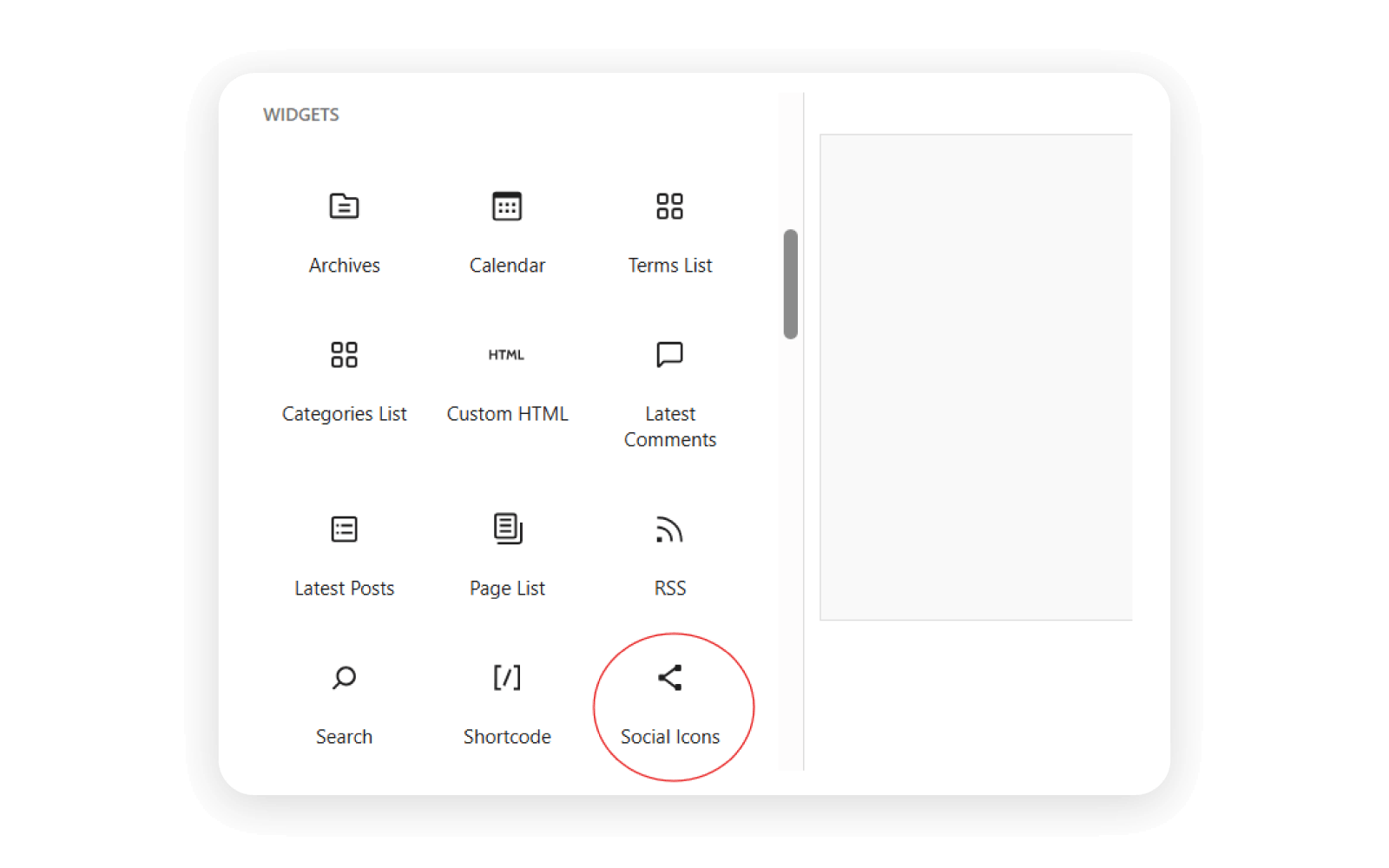
- Choose the platforms you want from the list of icon buttons.
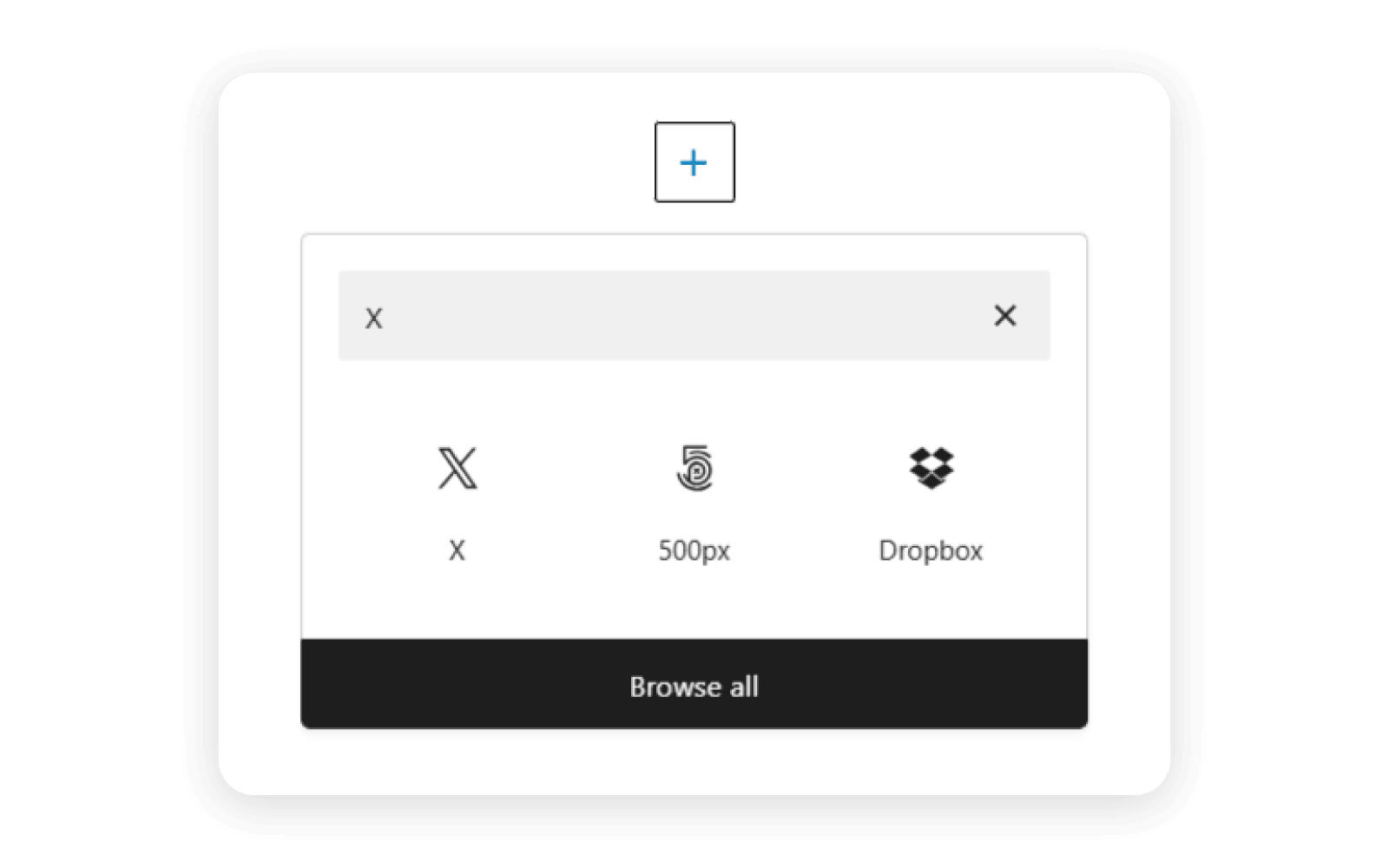
- Add your profile URLs to turn each placeholder into a working link. We’re again using the EasyWP X account as an example. Remember to select Apply after inserting the social media URL.
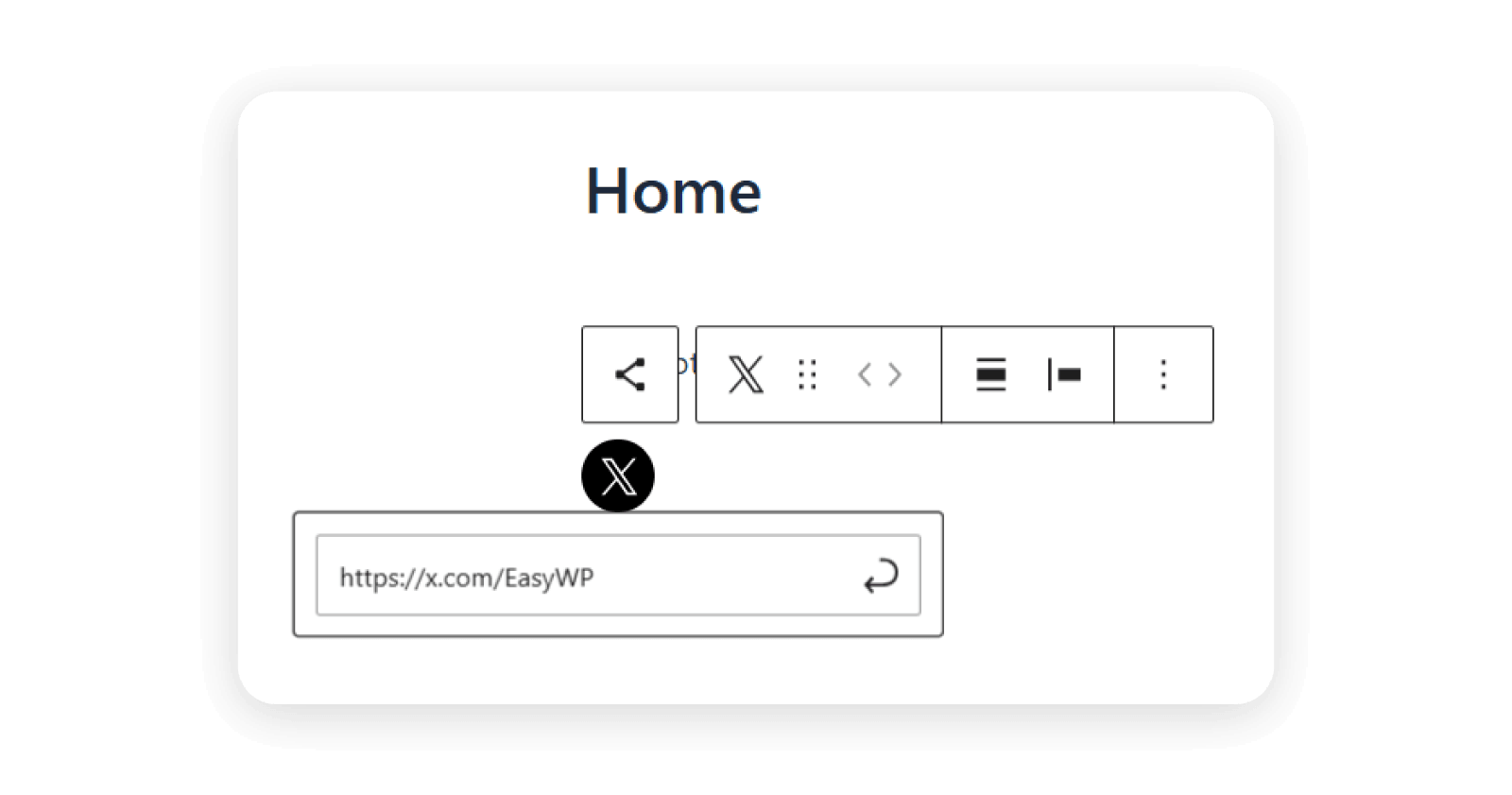
- Adjust the icon style or shape from the block settings panel.
The block makes it easy to place icons exactly where you want them. You can center them, group them with other content, or use them inside footers built with the Site Editor. It gives you more control than the theme menu method and works consistently across most setups.
Easy way 3: Add social media icons using Brizy Website Builder
If you want more control over how your social media icons look and where they appear, using a page builder plugin is often the easiest option. One popular choice is Brizy Website Builder, which is included with EasyWP Turbo and Supersonic plans.
Brizy lets you add and style social icons visually, without touching menus, widgets, or code.
- First, log in to your EasyWP dashboard and hit WP Admin on the relevant website.
- Open the Pages tab on the left side panel, locate the relevant page, and choose Edit with Brizy.
- Navigate to the left editor sidebar and hit the + icon, which opens up the Add Elements panel.
- From there, locate the Icon element, which is represented with a star symbol.
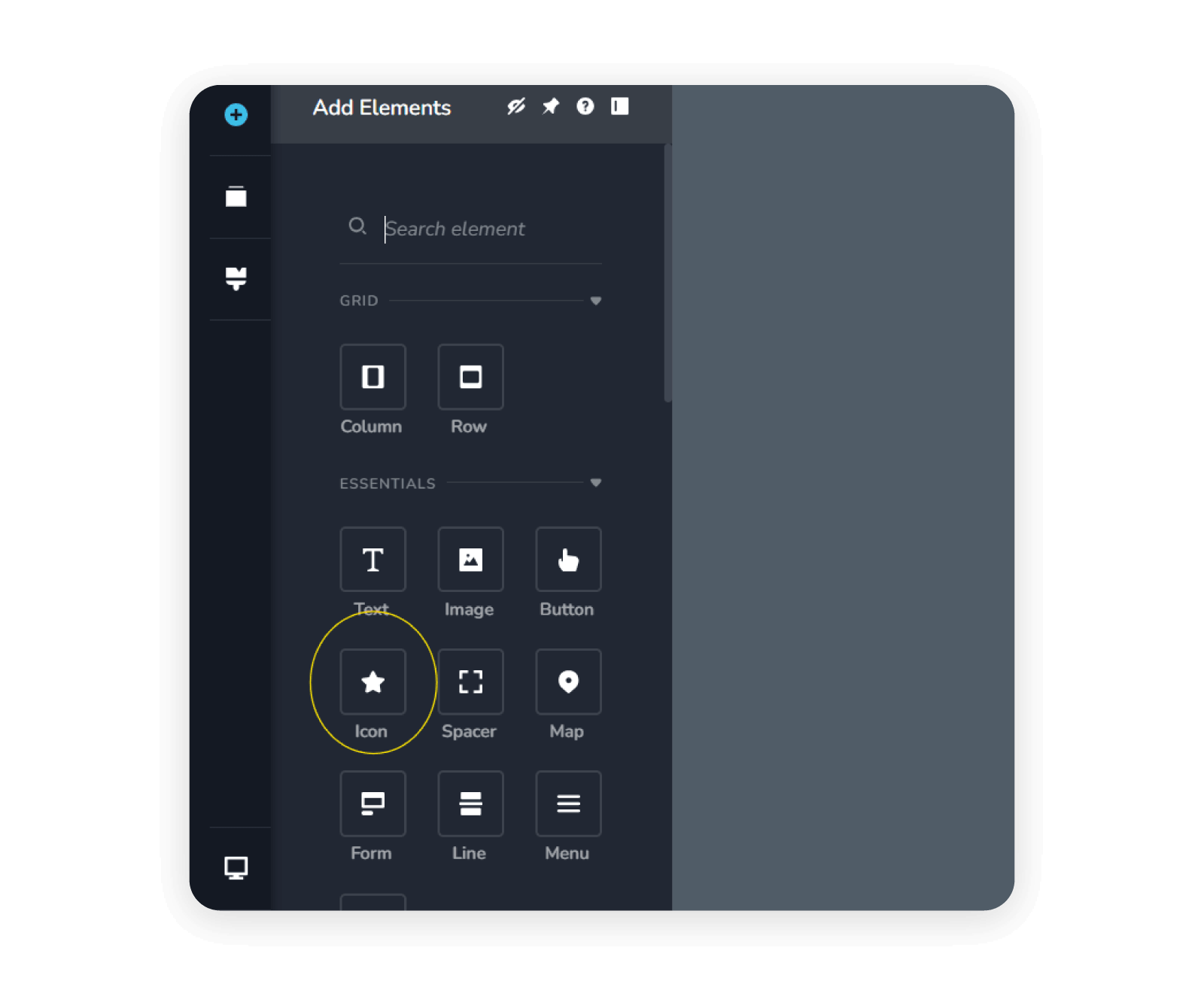
- Drag and drop the Icon element where you’d like the social media icon, for example in the footer.
- Select the icon to open the element toolbar, and select the star icon (furthest to the left).
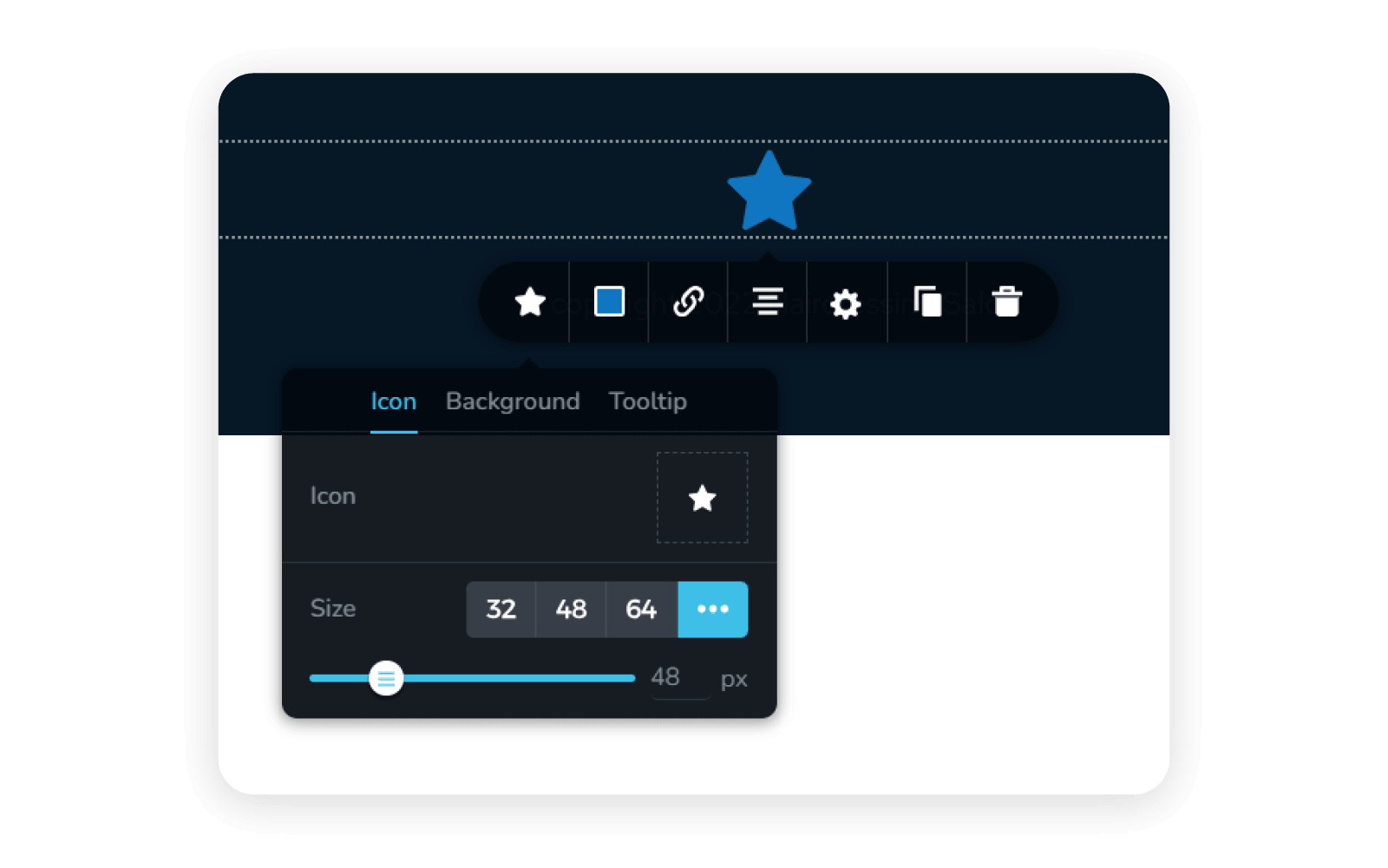
- Hit the star again to the right of the label Icon.
- A new pop up window opens with 4 tabs. Ensure you’re on the GLYTH tab.
- Using the search field, input the social media icon you require. In the example below, we’ve located the icon for Instagram.
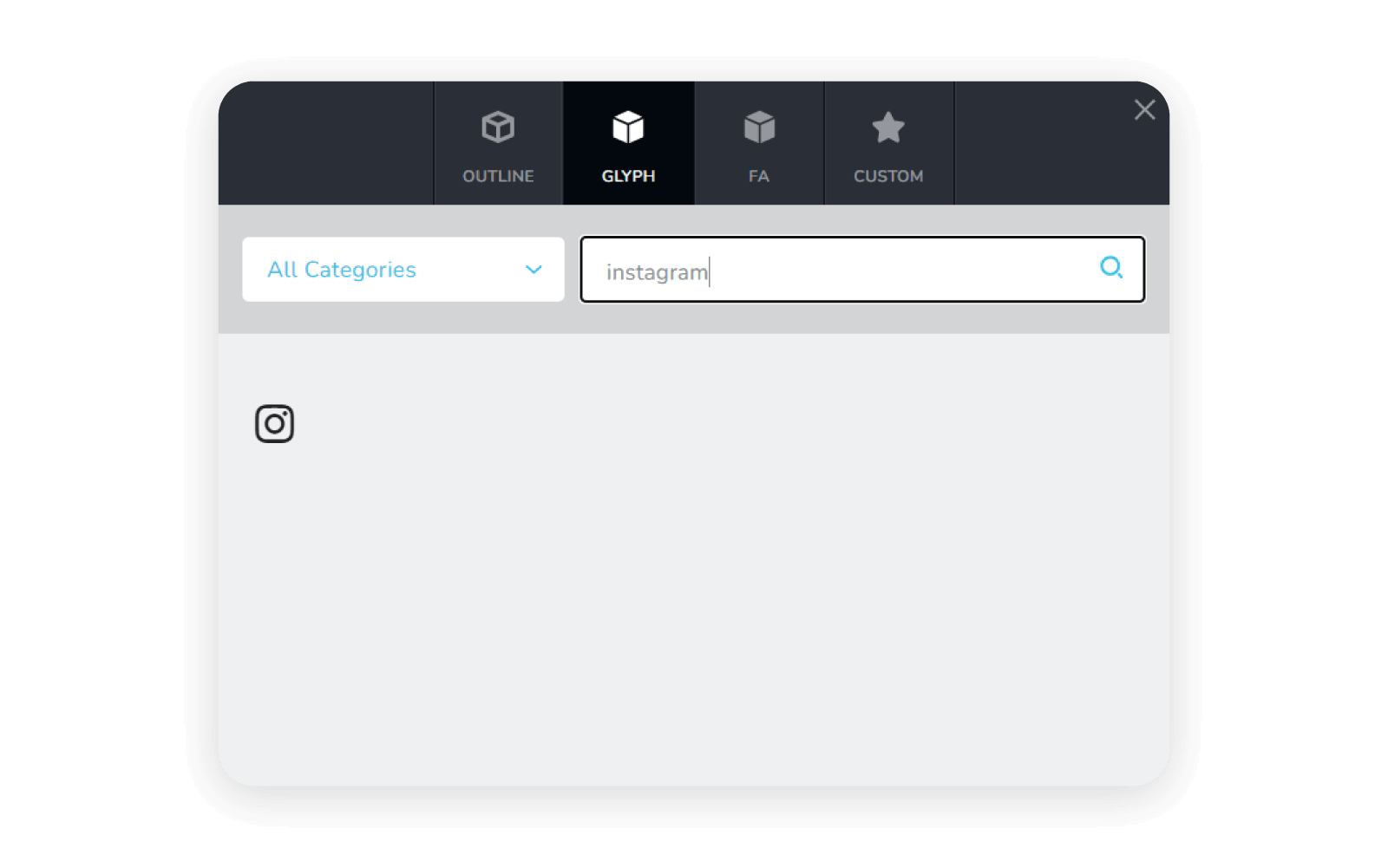
10. Simply hit the social media icon, and the star will change to the new symbol. You can continue adjusting the element, such as the color and size.
11. Finally, to link to the relevant social media page, select the link tab, navigate to URL, and copy and paste the URL of the social media page into Link to.
Pro tip: If you turn the Open in New Tab toggle on, your readers can check out your social accounts while still remaining on your site.
Bite-sized tips for social media icons
When your icons look clean and intentional, they help people connect with you quickly. Note down these bite-sized tips to keep your design strong and your navigation clear.
- Link only active accounts – People trust profiles that show recent activity.
- Open links in new tabs – This keeps your site open while visitors explore.
- Keep your layout simple – Too many icons create noise and distract users.
- Use consistent styles – Matching shapes and colors look better across pages.
- Place icons where people expect them – Headers, footers, and sidebars work best.
Following these tips helps your icons feel polished and purposeful (not crowded or confusing).
Turn your website into a gateway to your social channels
Social media plays an important role in how prospects and customers connect with your brand, so adding social media icons to your website gives visitors a vital gateway to those platforms. They help people move seamlessly from your website to the platforms where you share updates, content, and conversations.
In this guide, you’ve seen 3 simple ways to add social media icons in WordPress:
- Use your theme’s social menu – a quick, built-in option if your theme supports social links.
- Add the Social Icons block – a flexible, plugin-free way to place icons anywhere in your content or layout.
- Design them with Brizy – a visual approach that gives you more control over styling and placement.
Each method follows the same core idea: add your profile links, display the right icons, and place them where visitors naturally expect to find them. As mentioned, there are also plenty of social media WordPress plugins if you need something more specific.
Once your icons are live, your website becomes more connected. Visitors can discover your content, follow your updates, and stay engaged beyond a single page visit.
Next, bring a whole new layer of humanness to your brand with our 8 best WordPress plugins for social media to boost your presence.
FAQ
This article primarily focuses on adding social media icons without plugins. However, if you’re looking for extra features like social feeds, share buttons, analytics, and automatic icon styling, social plugins can be helpful. Popular plugins include Social Media Feather, which lets you add a “share this” button, Social Icons Widget & Block, a free plugin that allows you to choose from over 50 social media networks, and Shareaholic, which lets you add share buttons and includes features such as related content recommendations and Google Analytics integration.
As you will notice when browsing websites, the most common place to add social media icons is the footer, as they remain visible across all pages without distracting from the main content. Because this is the default area to add social media icons, we recommend placing them here to ensure visitors can quickly find them. However, some websites place social icons elsewhere, such as in headers and sidebars, depending on the website’s style.
Opening social media links in a new tab keeps your website open while visitors explore your social profiles. This helps reduce the chance of visitors leaving your site completely and allows them to easily return to your content after checking your social media pages. In WordPress, you can activate the Open link in a new tab option when adding social media links, as described in our first step.


More articles from us!