How to detect what WordPress plugins a site is using


WordPress is a fantastic CMS (Content Management System), but that doesn’t mean it can do everything. This is where the wonderful world of plugins comes in. WordPress uses plugins to extend its functionality and add new features. There are tens of thousands of plugins available for WordPress users to take advantage of, increasing the potential for your site..
Whether you want a blog, e-commerce store, image gallery, or something else, there’s almost certainly a WordPress plugin to help you do it. However, not every website you come across will have the same set of plugins as yours. How can you know what WordPress plugins a site is using?
Easiest way: Using a WordPress plugin detector
WordPress plugin detectors can scan any website and tell you what plugins it runs. The most accurate we’ve found is Scan WP. Find the website you want to scan and enter the URL into the box at the top of the page.
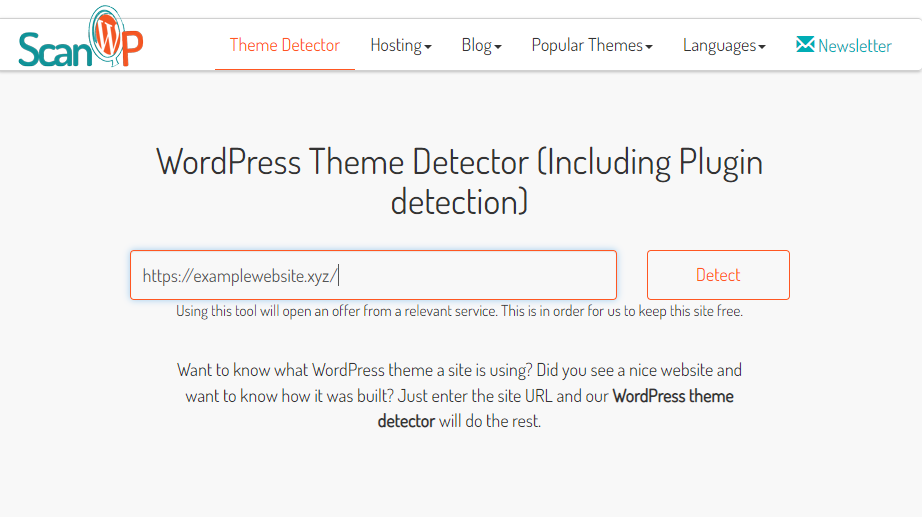
Click the Detect button, and you’ll see a list of all the website’s plugins.
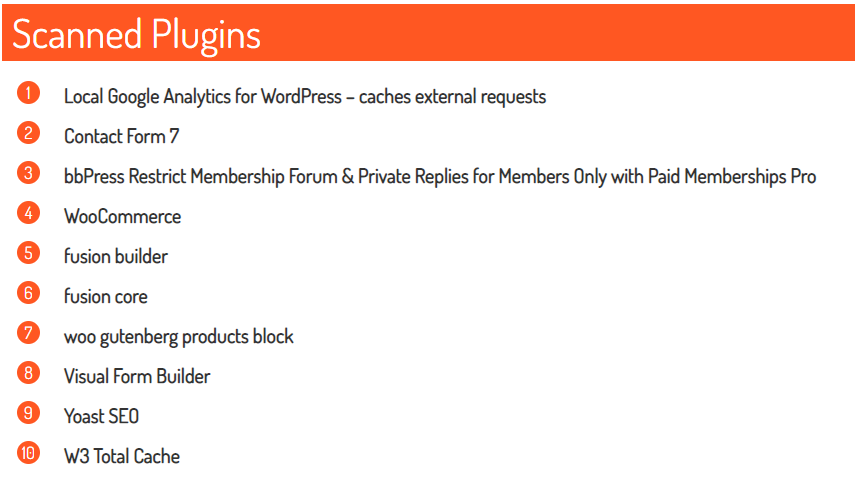
This can also be a great way to find out what WordPress theme and theme version a site is using. For more on this, check out our article on WordPress theme detectors.
Still, Scan WP is not a foolproof method, but it can be very effective. Keep in mind that it will not always detect inactive plugins or only provide back-end, non-customer-facing functions.
For advanced users: looking at the HTML
Unfortunately, sometimes you can’t use a WordPress plugin detector to find out what WordPress plugins a site is using. A lack of plugin results could mean the developers have customized the plugins or someCSS in the code confuses the detector. If you try, you’ll get no results.
When you run into this problem, you must look at the website’s source code. The quickest way to do that is to right-click and select “View Source.” You’ll see all the code on the page, including the plugins the site is running. Alternatively, you can use a tool like Chrome DevTools to do this.
For instance, in the example below from TechCrunch, you can see that they are using the popular Yoast SEO plugin, and the premium version at that.
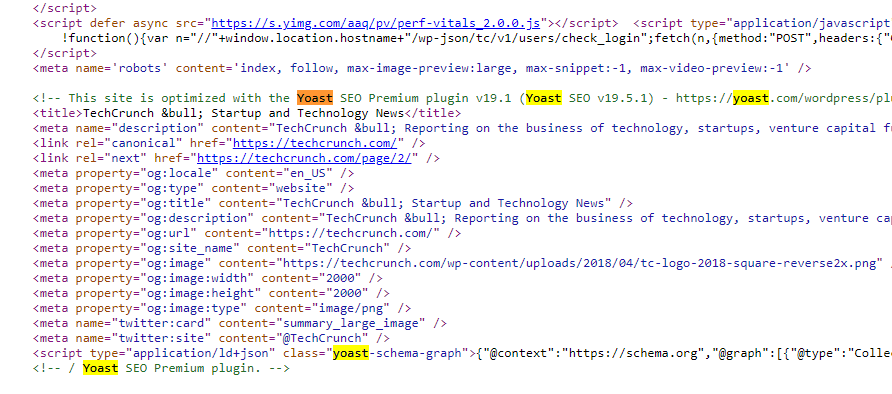
The great thing about this method is that it will show you everything the plugins are doing – not just the existing plugin on the site. By examining their placement in the code, you can better understand which parts of the page they operate in.
The drawback of examining code can be that it’s time-consuming, and requires some background in HTML and common plugin names.
Frequent users: using Google Chrome extensions
Chrome is a very popular browser these days, and it has several extensions that let you find out what plugins a website is running. Scan WP has a Chrome extension available, but we’ve found that the WordPress Theme Detector and Plugin Detector from ThemesInfo is more reliable.
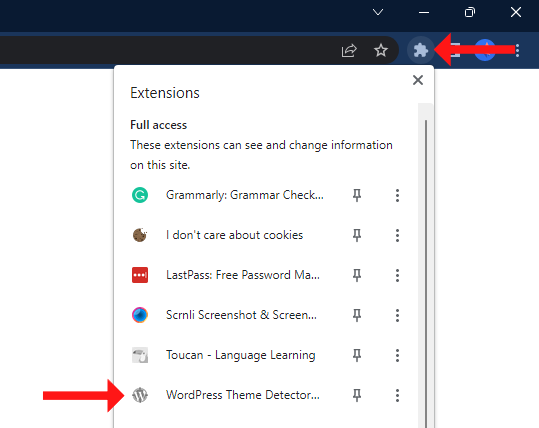
After installing the Chrome extension, you must navigate to the website you want to know more about and click the “W” WordPress icon in the list on the address bar.
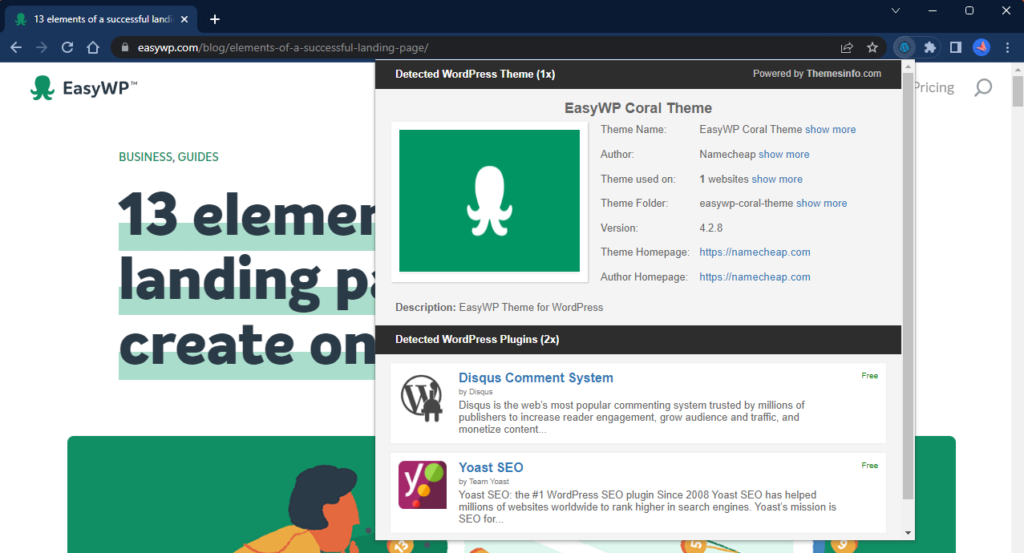
This will bring up a popup with a list of all the plugins running on the website, along with a description and some pricing details.
This is a fantastic way to detect plugins consistently. It will save lots of time for UX designers who frequently need to research site functionality. It’s free and doesn’t seem to cause any extra latency with pages loading in your Chrome browser. However, if you don’t plan to research plugins regularly, it’s best to use one of the previous methods for security reasons.
Finding out more about a plugin
Now that you’ve discovered a new plugin that seems to meet your needs, you first need to do a little more research before installing it.

WordPress security needs to be top of mind, and plugins can be the first port of call for would-be hackers. So as a quick ‘what to do next guide’, you need to do the following:
- Ensure you have a WordPress installation that’s up to date.
- Always read the plugin documentation and carefully test the plugin after installation to avoid any issues.
- Make sure your hosting has adequate storage to accommodate the plugin, especially if it’s large or complex.
- Read the plugin’s vendor instructions to ensure you’ve installed all dependencies.
- If you have an issue, follow the plugin developers’ instructions for testing and debugging.
The plugin possibilities are endless
Once you’ve detected that perfect WordPress plugin, researched , installed , and confirmed it’s running stable, you’re done! It’s time to move on to the next site project. For more information about finding the right plugin for your site, check out our complete guide to WordPress plugins. Here we cover some of the most popular plugin choices, guide you through the installation process, and link to resources on protecting your website.
FAQ: Detecting WordPress plugins on any site
Not always. Plugin‑detection tools like Scan WP are handy for spotting many public‑facing themes and plugins, but they can miss inactive, backend‑only, or heavily customized plugins. What’s more, some site owners intentionally hide plugin footprints for security reasons, so treat their results as a starting point rather than a final verdict.
If a scanner comes up empty, open your browser’s developer tools and inspect the site’s HTML, CSS, and JavaScript for plugin‑related file paths, comments, or classes that can reveal what’s running behind the scenes. Yes, it takes a bit more effort, but it can reveal hints that automated tools overlook.
Before you install anything, update WordPress core, check the plugin’s documentation and requirements, and confirm your hosting resources. This is also a great time to save a backup. Then install the plugin and test it carefully so you can quickly roll back if something breaks. It’s also smart to test the plugin on a staging site first so you can roll back quickly if something doesn’t work as expected. If you do install a plugin on your live site and it doesn’t work properly, EasyWP offers easy backup restoration right from the dashboard.


More articles from us!
9 best timeline plugins for WordPress

9 WordPress plugins to improve your customer experience