How do I edit the footer in WordPress: 3 easy ways

Ever been working on your WordPress site and noticed that plain footer staring back at you? Maybe it says “Powered by WordPress,” or maybe it’s empty and looks unfinished. It’s easy for it to be brushed aside, but at the back of your mind you know it needs something.
Think of your website’s footer as your way to get your foot — or rather, your footer — in the door. It’s the last thing visitors see, and often, their final impression of your brand. When used well, it can build trust, guide action, and even capture new leads. So you may be thinking: How do I edit the footer in WordPress?
Various themes and tools handle the footer in slightly different ways. However, the good news is you don’t need to be a techie to customize it. In just a few minutes, you can turn that blank space into something useful and professional.
In this bite-sized guide, you’ll learn 4 easy ways to edit your WordPress footer, from simple widget updates to using the Brizy Website Builder, which is included with EasyWP Turbo and Supersonic plans. Each method is practical, beginner-friendly, and helps you take full control of your site’s design.
What key details should you place in your footer?
The footer is the section at the very bottom of every page on your WordPress site. For freelancers and small businesses, it’s a valuable space to build trust and keep visitors engaged even after they’ve scrolled through your content. Here are some ideas on what you could place in your footer:
- Business details – your company name, address, and key contact info to show legitimacy and help potential customers reach you.
- Legal links – privacy policy, terms, and cookie notice to stay compliant and professional.
- Quick navigation – shortcuts to key pages like Services, Portfolio, About, or Contact.
- Social proof – links to social media or testimonials to build credibility.
- Newsletter or call-to-action – an opt-in form or booking link to convert visitors before they leave the site.

Depending on your theme and setup, there are a few different ways to update the footer. Below, we’ll walk you through 3 easy methods.
How do I edit the footer in WordPress with widgets?
Most classic WordPress themes use widgets to control the footer layout. Widgets are small blocks of content, like text, menus, or images, that can be easily dragged into place.
Here’s how to do it:
- Log in to your WordPress dashboard.
- Go to Appearance > Widgets.
- Find the Footer widget area (it may be labeled “Footer 1”, “Footer 2”, etc. depending on your theme).
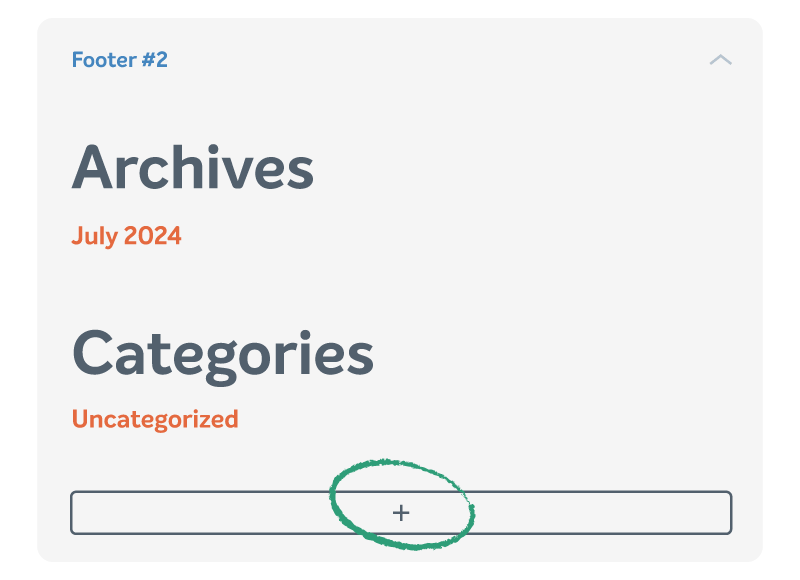
- Add or edit widgets – You can add footer text, menus, custom HTML, or other content blocks. For example, if you want to add your business name and contact details:
- Click the “+” icon in the footer area.
- Choose Text (sometimes called “Paragraph” or “Custom HTML” depending on your theme).
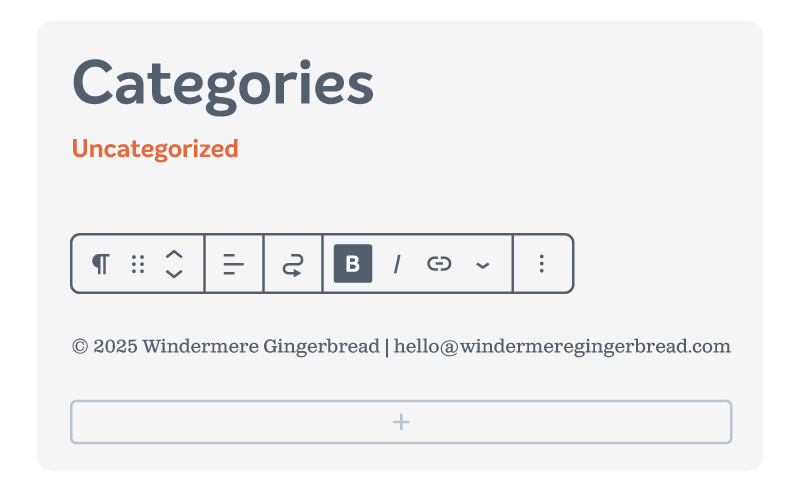
- Type your content, such as:
“© 2025 Windermere Gingerbread | [email protected]” - Use the formatting toolbar to bold, add links, or align the footer text.
- Select “Update” to save changes.
Not seeing a footer widget area? Your theme may use a different method. Skip to the next section to use the Block Editor instead.
How do I edit the footer in WordPress using the Block Editor
If your theme is block-based (like Twenty Twenty-Three or newer), your footer is managed through the Full Site Editor, part of the Gutenberg Block Editor.
Follow these steps:
- Go to Appearance > Editor (only available on block themes).
- Click on the Footer section in the template preview.
- Use blocks to customize – You can insert elements like logos, menus, social icons, or footer text. For example, to add a copyright notice:

- Click the “+” icon inside the footer area.
- Select the Paragraph block.
- Type something like:
“© 2025 Windermere Gingerbread. All rights reserved.” - Highlight the footer text and use the toolbar to center it or change its color.

- You can also add another block below it, such as Social Icons, to include links to your social media pages.
- Click “Save” in the top-right corner when you’re done.
Note: In some themes, you might not see a “Footer” section listed directly under Appearance. Instead, go to Appearance > Navigation. This section manages different areas of your site, including the footer navigation menu. From there, you can edit or add links to appear in your footer. The process is the same, it’s simply managed under “Navigation” rather than “Footer.”
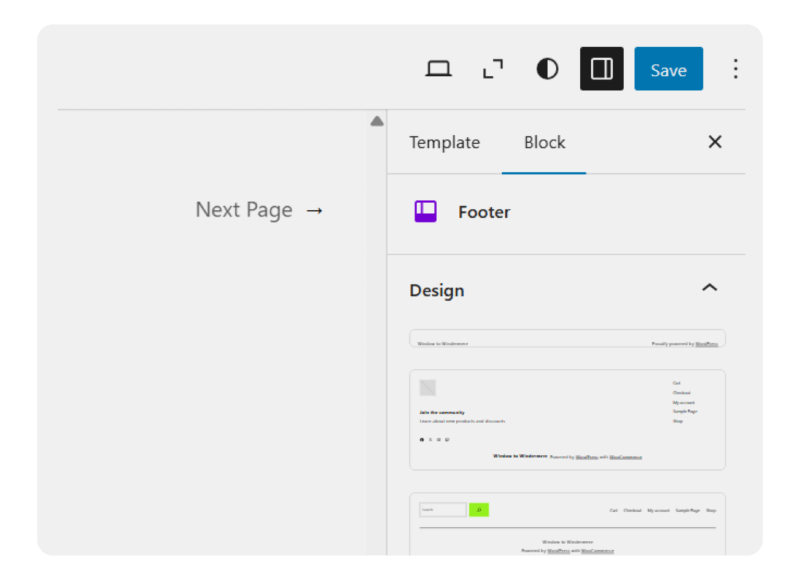
Good to know – Block Editor footers offer flexibility with layout and design. You can also add reusable blocks to keep things consistent across pages.
How to remove the “Powered by WordPress” footer template
The “Powered by WordPress” line is harmless, but if you’re aiming for a clean, branded look, you might want to remove it.
There are 2 ways you can remove the default WordPress footer template, depending on the circumstances.
- Use the Customizer (if available)
- Go to Appearance > Customize. Check the left-hand menu for options like Theme Options, Widgets, or Layout. Some themes include a dedicated Footer section here, but not all do. If you don’t see a Footer option, open Widgets instead. Look for a footer widget area (for example, Footer 1 or Footer 2).
From there, you can edit or remove the “Powered by WordPress” footer template text if your theme allows it.

When you’re finished, select Publish to save your changes.
- Use the Full Site Editor (for block themes)
- Go to Appearance > Editor.
- Select the Footer section.
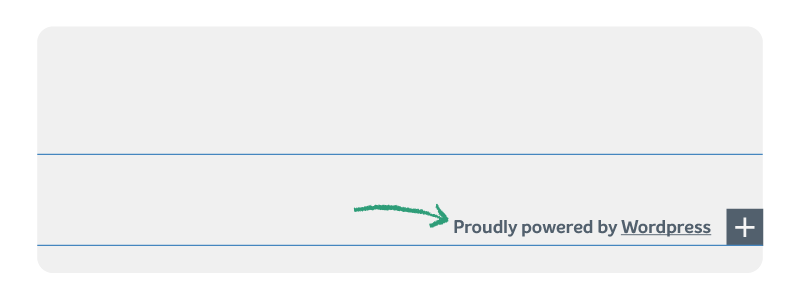
- Select and delete the block that says “Proudly powered by WordPress.”
- Select Save.
How do I edit the footer in WordPress using Brizy Site Builder?
If you’re using EasyWP Turbo or Supersonic plans, you already have access to Brizy Website Builder – a powerful visual website builder that makes editing footers (and everything else) easy.
Here’s how to remove the footer with Brizy:
- Log in to your WordPress dashboard.
- Launch Brizy from the top admin bar by selecting “Edit Page with Brizy”.
- Scroll down to the Footer section of your page and select the footer.
- Use the toolbar that appears above to easily edit the footer. For example, you can change colors, add hyperlinks, align the footer text, and more. You can even use the AiText feature if you’re stuck on what to write.
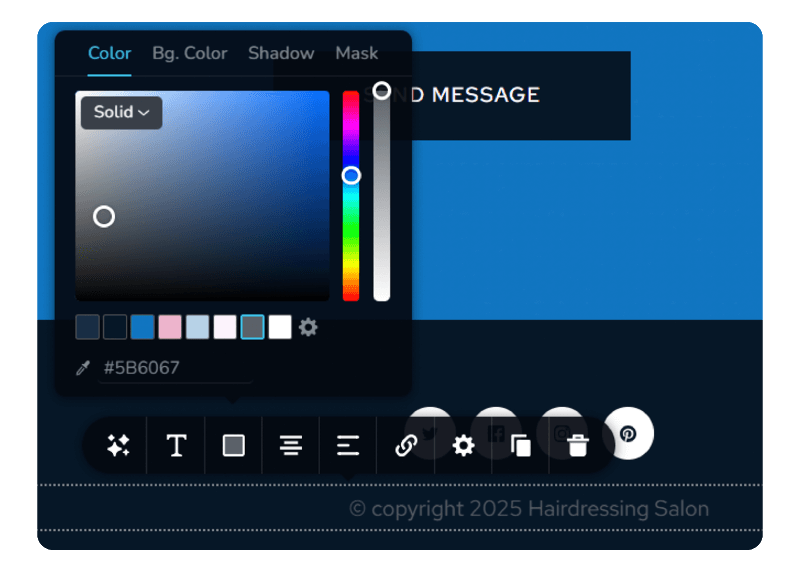
- Select “Update” in the bottom right to publish changes.

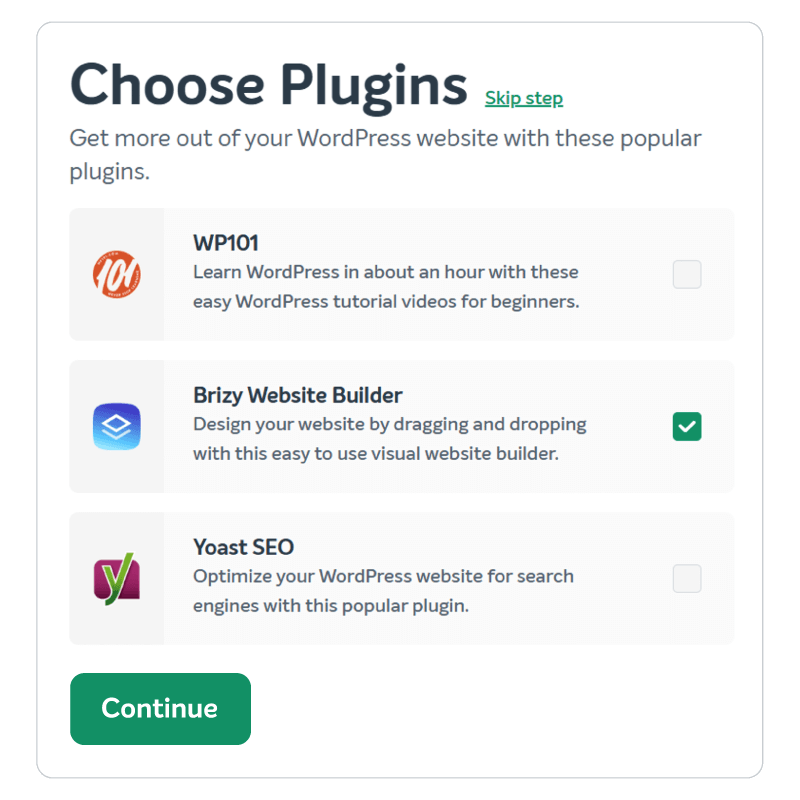
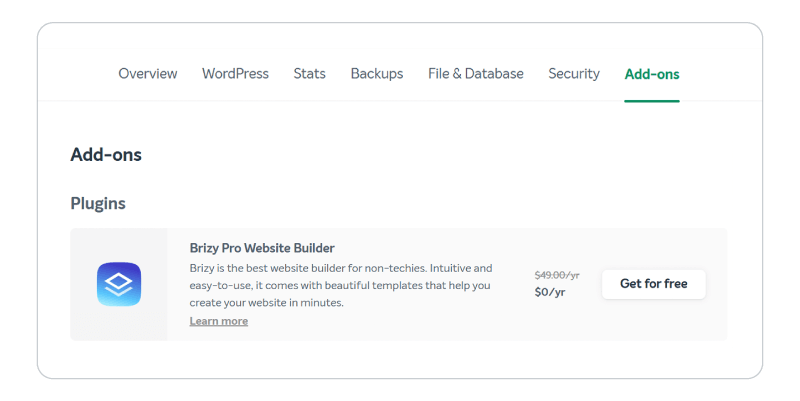
Have an EasyWP Turbo or Supersonic plan? If you chose Brizy Website Builder during the “Choose Plugins” step in your EasyWP dashboard setup, Brizy is already good to go. If you didn’t select it then, simply head to the “Add-ons” tab, find Brizy, and click “Get for free” to activate it.
A small step with big opportunities
Your website’s footer might seem small, but it carries big opportunities for your business.
A clean, customized footer tells potential clients you’re serious, professional, and easy to contact. It gives you a chance to reinforce your brand identity and invite people to take the next step, like booking a call, joining your mailing list, or connecting on social media.
Now that you know four practical ways to edit your WordPress footer, take 10 minutes to make it yours. Add the links, calls-to-action, or business info that help you stand out.
Once you’ve edited your footer, you may even be inspired to give your WordPress theme a full makeover.


More articles from us!
13 elements of a successful landing page (and how to create one)

KISS your WordPress website